Live View - Telematics Guru

Written by Matthew Clark-Massera
Updated at November 12th, 2026
Table of Contents
Introduction
The Live View in Telematics Guru shows a real-time map of where your assets are and what state they are in. This guide covers opening the Live View, selecting an asset, the other places you can reach it from, clustering, and controlling the idle time out.
The Live View
The Live View in Telematics Guru can be useful to see an instant representation of where your assets are and in what state they are currently in.
Live View Refresh Rate
The live view refreshes every 60 seconds unless your user login is restricted by Project, Department, or Asset, in which case it will refresh every 15 seconds. To reduce server load, browsers that have been idle for 4.5 minutes will suspend these automatic updates. You can disable the 4.5-minute suspension by Disabling Asset Updates Paused.
In order to view this page the Live View permission must be enabled for the user.
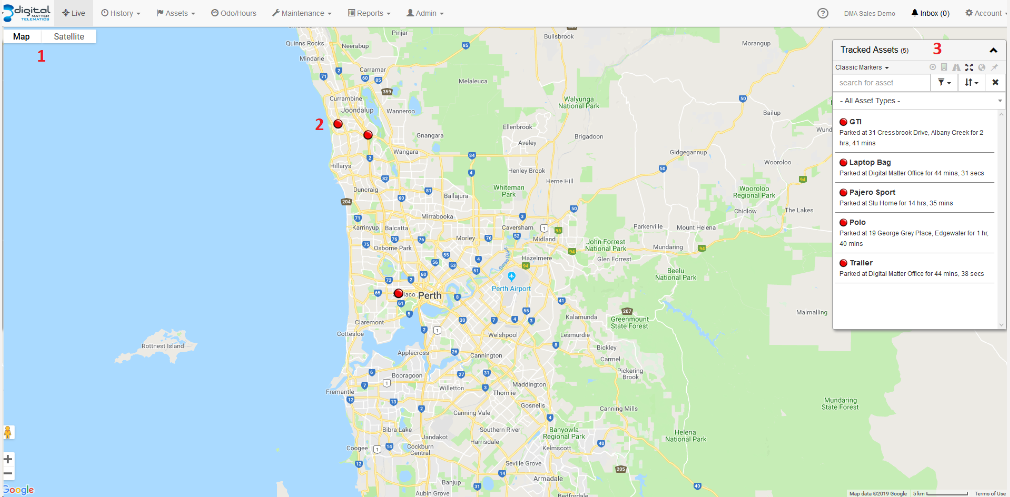
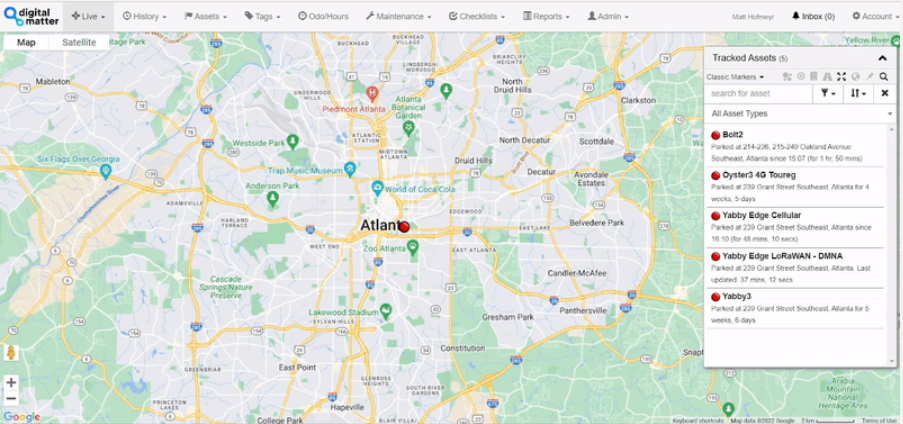
- Here you can choose whether to display a road map view or satellite view
- This is what Assets can look like on the live view
- The 'Map Menu' holds several great searching and grouping tools including groupings by Asset colour, project, Asset type and Department.
Other Ways to Open the Live View
As well as opening the Live View from the main menu, you can jump straight to an asset's live location from a couple of other places in Telematics Guru.
From the Asset Manage icon
In the asset list, use the Manage icon to the right of an asset to open its Live View directly.

From the Trip History map
On the Trip History map, use the side menu above the list of trips to open the Live View for that asset.

Selecting an Asset
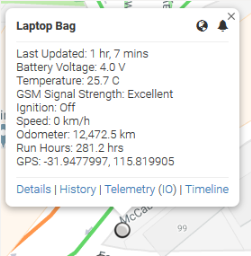
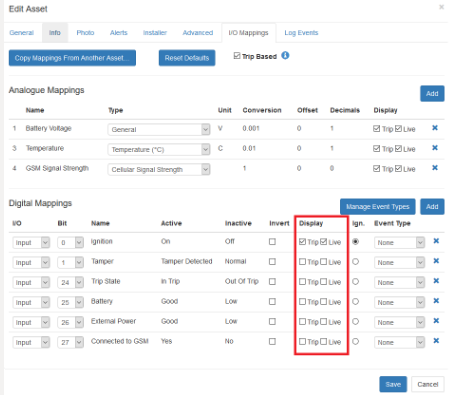
You can either click on an asset from the Map Menu as shown above, or search using the tool in the menu itself. Once you select an asset, your map will zoom to it's location and show the information card. The information card displays the current Telemetry record log and can be altered to include the status of Digital IO Mappings through Edit Asset >> IO Mappings.
 |
 |
Location Sharing
From the Live View you can share an asset's location with external parties via a link, and you can share multiple assets at once to let customers track a fleet. Click the world icon on a selected asset to start a single asset share.
These options have moved into their own guide. For full instructions, permissions and examples, see Asset & Multi-Asset Location Sharing.
Clustering on Live View
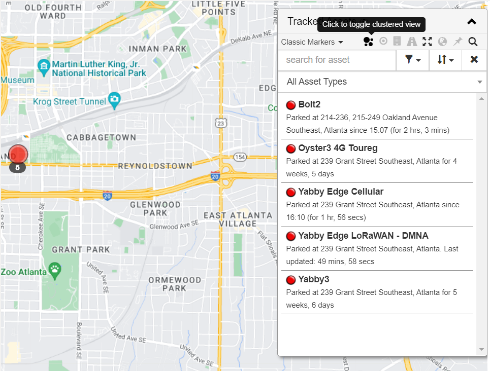
To avoid cluttering on the map with organizations with large amount of devices, and to ensure no degradation in the performance of the live view, clustered view is an option that can be toggled. This feature can be set via the view setting in the legend on the live view as seen below. The clustering is color coordinated based on the percentage of devices in each cluster compared to the total amount (<25% green, 25%-50% orange, >50% red).
Live View Time Out - Disabling Asset Update Pausing
The Live view on TG normally automatically updates the position and status of the assets. To reduce server load, browsers that have been idle for 4.5 minutes will suspend these automatic updates. An "Asset Updates Paused" message will appear on the screen and the user must click OK to resume.
This is not acceptable for control rooms, so this functionality can be disabled for a user. It is defaulted to enabled.
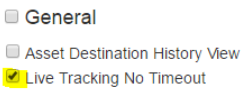
To disable this function for a user, the "Live Tracking No Timeout" permission must be ticked. To give this to another user, your user must have the permission - you cannot award a permission you do no have. If you cannot see this permission, contact support.
Follow these steps:
- Switch to the user's home organisation.
- Go to Admin->Users
- Click Edit for the user.
- Go to Permissions tab
- Scroll to the General category
- Tick "Live Tracking No Timeout"
- Click Save.
This is the permission to check:
Next Steps
Learn how to give external parties temporary visibility of your assets in Asset & Multi-Asset Location Sharing, or Activate a Movement Alert to be notified when an asset moves.
