Gurtam Integration

Written by Sean Withers
Updated at July 1st, 2025
Table of Contents
Steps for Setting Up a Connector for Gurtam/Wialon
Verify Device Type and Server Port
- Each device type would require their own connector (use different ports)
- Confirm the server port number for the device. This can be found in the device details on the Wialon website (Oyster3 for example below)
https://wialon.com/en/gps-hardware/auto/oyster3-4g

Verify the Endpoint/Server Address
- The user will be able to verify the endpoint/server address in the unit properties within the Gurtam interface. The server address can vary depending on the region.
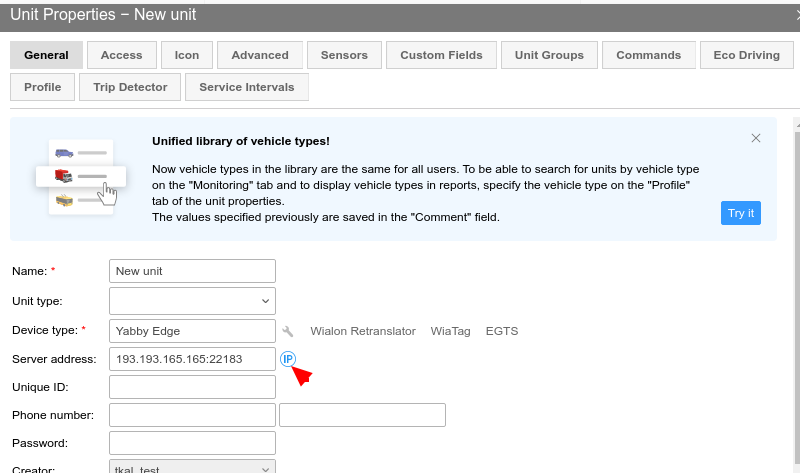
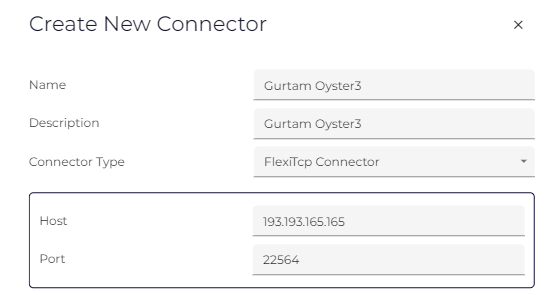
Create a Connector in Device Manager: Create a Connector - set up an integration
- Open Device Manager.
- Select “Connectors”
- Enter the server address in the "IP" section.
- Enter the port number in the "Port" section.
Edge Devices:
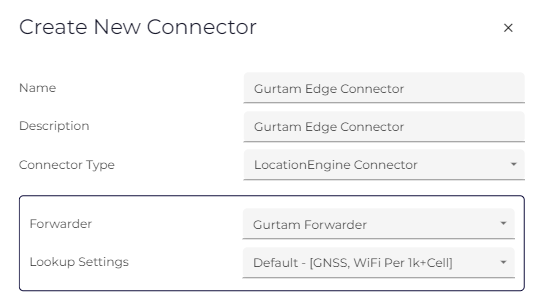
The steps for Edge devices are the same in that you confirm the port and server address of the device type but then create a Forwarder & Location Engine Connector: Forward Edge Device Data to my Endpoint (Cellular)
- Configure the forwarder with the following URL format: http://serveraddress:port
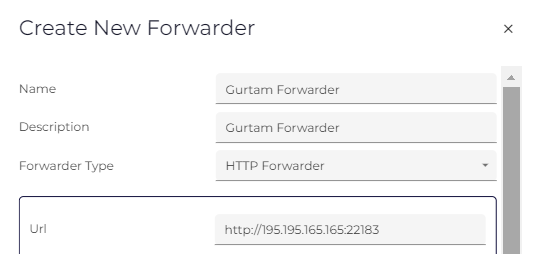
- Select Assign Partition for the Forwarder

- Select Connectors and create a Location Engine Connector for the Forwarder just created.
Note for clients: When adding Digital Matter devices into Gurtam, the user will need to verify if the serial or IMEI is to be used. This can be found under the information section of the device on the Gurtam website.
https://wialon.com/en/hw-manufacturers/digital-matter-telematics

