Fuel Monitoring in Telematics Guru

Written by Matthew Clark-Massera
Updated at March 30th, 2026
Table of Contents
Telematics Guru can support fuel monitoring functionality.
It should be noted that the overall reliability and usefulness of the data ultimately relies on the ability of any connected fuel sensor to provide accurate readings. Fuel in tanks sloshes about - and some sensors report readings regularly, which without smoothing can become unreliable.
Getting Fuel Data
- Teltonika Device Setup (some Teltonika devices are integrated and will report fuel data to TG)
- Supported Sensors and Inputs
- Fuel Level Monitoring - Reading Technoton DUT-E S7 and Escort Probes
- Tenet Ultrasonic Fuel Sensor
Any given fuel sensor will read the sensor and report a "raw" value in it's Analogue Data field.
To convert this into a useable/human readable number, we set up an analogue mapping - defaults are shown below.
Advanced Analogue Mappings
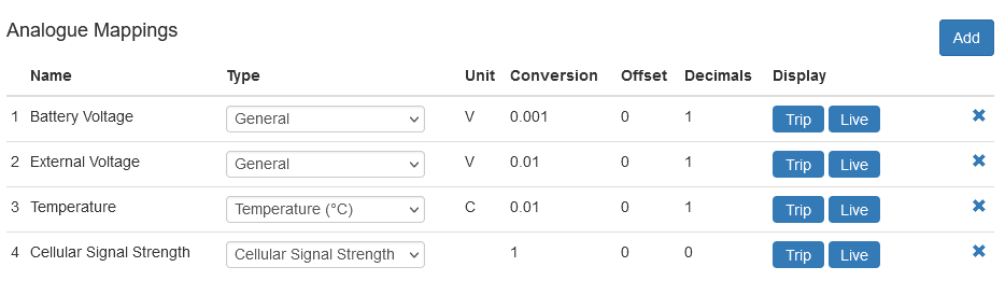
These are linear, i.e. for battery voltage, the devices report the value in terms of mV - so 4000 is reported, and we can convert to 4.0V in the display via the mapping above.
Not all sensors operate in this way (though many do). For example, some fuel level sensors will measure the fuel depth in a tank. Some tanks may be narrower/wider in certain sections looking top to bottom. So to convert a sensor reading to a %, we need a non-linear analogue mappings.
Configuration
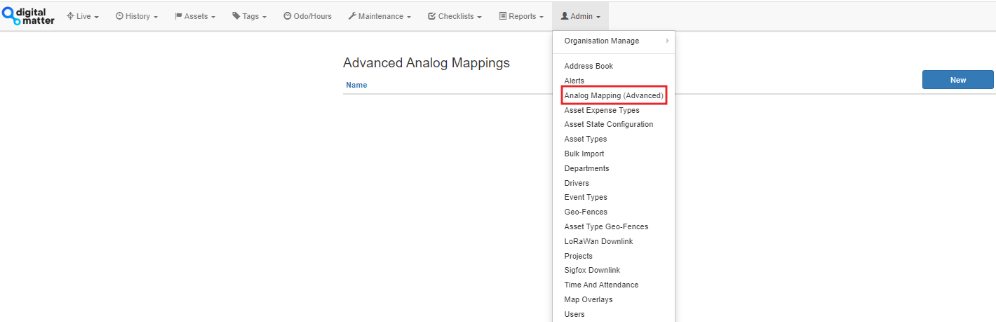
1. Create Advanced Analogue Mapping

- Give the mapping a name
- Select an asset type (all or a specific asset type)
- Set the Min/Max X and Y values, showing the range.
- X is the Sensor Reading (i.e. 200 = 200mV read by analogue sensor)
- Y is the desired displayed value, i.e. 20% full.
So for a tank level sensor which reads 1V when empty, and 5V when full,
- Min X = 1 (V)
- Min Y = 0% (empty tank)
- Max X = 5 (V)
- Max Y = 100% (full tank)
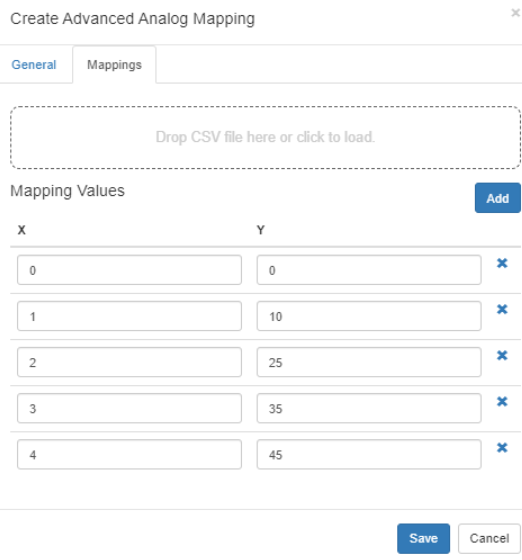
2. Add the mapping values
You can then add various mapping values via the table provided or CSV.
Some probe/tank manufacturers may provide this data. Otherwise, it can be calculated by taking readings at various tank levels and inputting.
3. Apply Mapping
When creating or editing an asset, add a new mapping
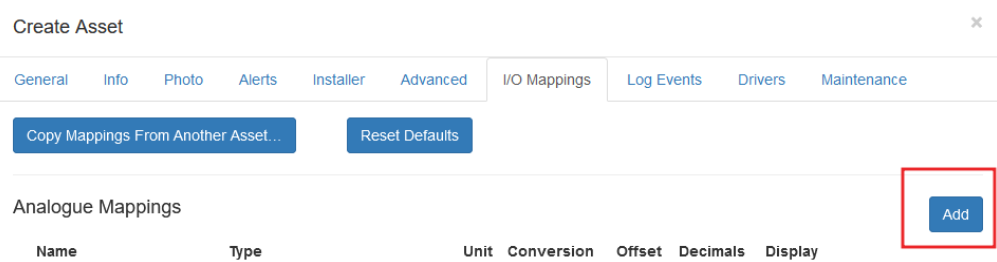
On the Create Screen, choose the "Advanced" option and select your previously created mapping.
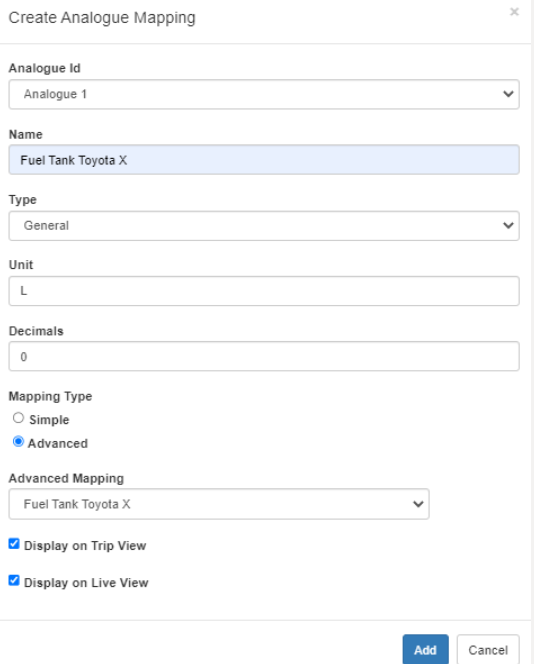
When viewing your live or historic data, the advanced analogue mapping will be visible, if enabled above.

Manage Trips
You can determine how much fuel was consumed during a given trip with additional columns in the Manage Trips report.
- Choose your preferred method for recording fuel values, either via an analog connection on a wired device, a BLE fuel probe (like Technoton or Escort), or by integrating a device that is capable of reading fuel from a vehicle’s CANbus.
- If you haven't already, define the analog as a fuel type analog while editing your asset (per above instructions).
- Drive around for a bit!
- Review consumption on a trip-by-trip basis on the Manage Trips page.

Reporting
Several reports can be used.
- Asset Analogue Value Report
- This report will provide the current 'snapshot' of device analogue values. i.e. What is the current tank level across the fleet (or anything that is reported in the analogues)
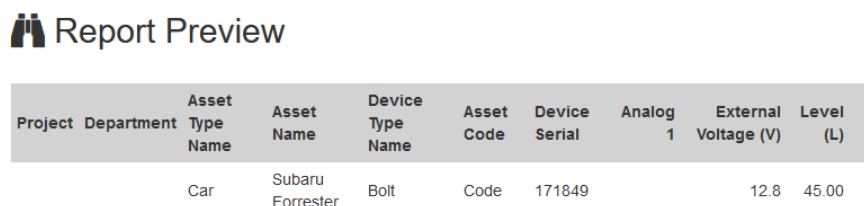
- This report will provide the current 'snapshot' of device analogue values. i.e. What is the current tank level across the fleet (or anything that is reported in the analogues)
- Trip List (Diff) Report
- This report can be customised to include the difference between Analogue Values (i.e. fuel level) at the start and end of trip.
- This provides the fuel burn for the Trip.

Fuel Consumption Estimates
Telematics Guru can also estimate the fuel consumption per trip using pre-configured fuel consumption inputs. TG calculates the estimate based on the idle time and speed, over the total distance, per trip. This feature can only be enabled for Trip-Based assets.
A linear approximation is used between the urban and suburban thresholds. This means, for example, with an urban fuel consumption of 10L/100km at 36km/h and a suburban fuel consumption of 5L/100km at 80km/h, at 58km/h, we're assuming a fuel consumption of 7.5L/100km.
Configuration
1. Configure Fuel Consumption Estimates
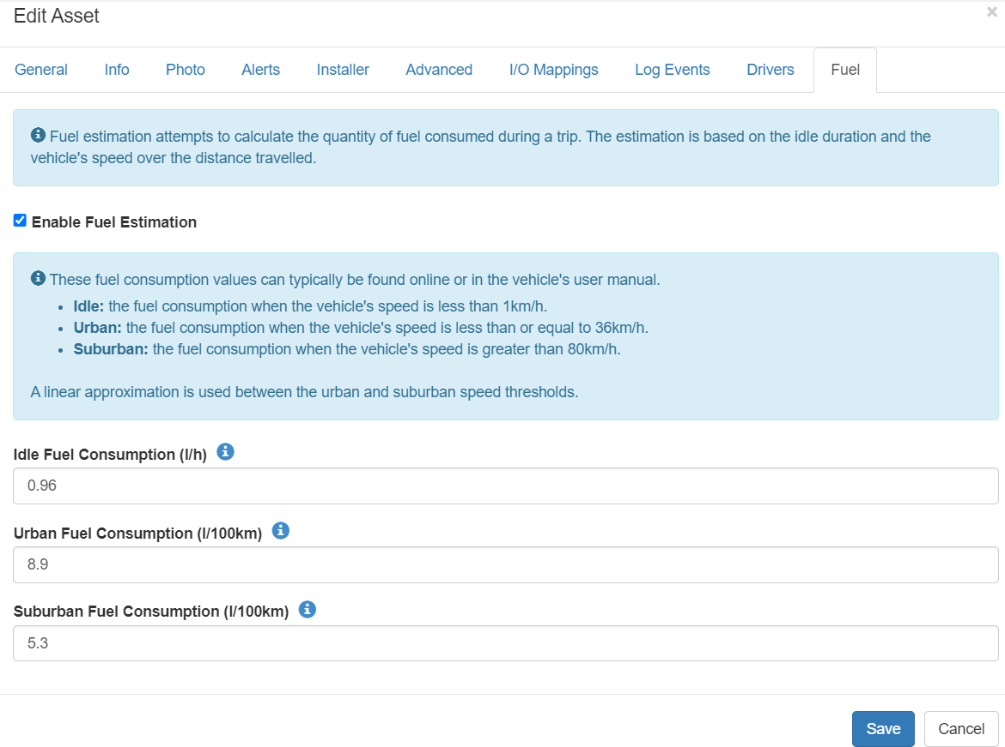
- Enable the Fuel Estimation.
- The Idle, Urban and Suburban fuel consumption estimates are required.
- These can generally be found in the vehicles user manual.
If the Fuel consumption for an asset is edited, the estimates will be changed for new data, only. Historic data will not be updated.
Fuel Consumption Report
- Trip List Report
- This report can be customised to include the Estimated Fuel Consumption per trip.

- Trip List (Diff) Report
- This report can also be customised to include the Estimated Fuel Consumption per trip, as above.
Fuel Theft Alerts
The ‘Analogue Differential’ condition allows alerts to be generated if an analogue value changes by a pre-determined amount between one record and the next.
The device reporting rate will therefore impact whether this alert is generated or not.

Leaving the magnitude at 0 will cause for alerts on any analogue change.
The alerting condition can be changed for increases, decreases and general changes below or above a certain magnitude.
