Asset Expense Tracking - Getting Started

Written by Matthew Clark-Massera
Updated at January 26th, 2023
TG Asset Expense Tracking – Getting Started
Introduction
"Asset Expense Tracking" allows users to:
- Add expenses linked to an asset, with references to drivers, projects and departments if the organisation functionality permits.
- View captured expenses online.
- Report on captured expenses.
Before you start: In order to use the Asset Expenses platform on Telematics Guru, the user is required to have “Expense Capture” as a minimum permission.
View your Asset Expenses
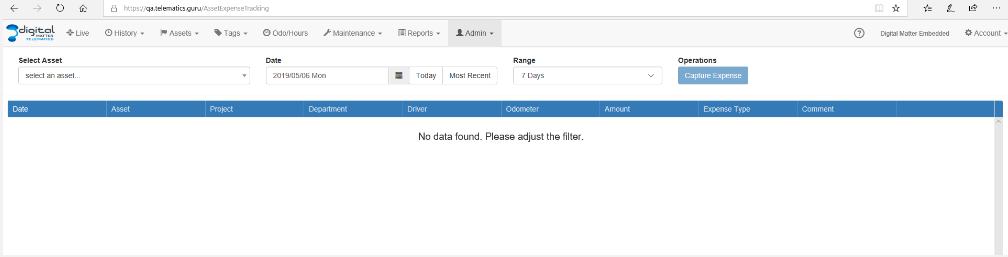
Under the Assets tab in Telematics Guru, the user can select “Manage Expenses” if the user has the correct permission.
· Select an asset – only one asset can be selected at one time
· Date – the expense date is specific to the expense type (the captured date is logged and can be viewed in the report)
· Range - selecting a date and range of i.e. 7 days, the expenses for the previous 7 days, inclusive of the specified date, will be shown
Capture an Asset Expense
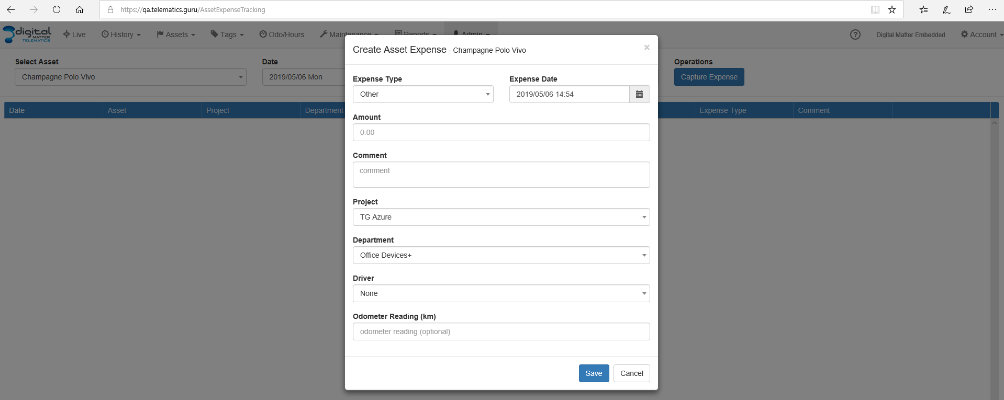
The user can capture expenses by clicking “Capture Expenses”. Here the user can capture the “Expense Type”, “Expense Date”, “Amount”, etc. This allows the user to capture a specific expense and assign it to a Project and/or Department and/or Driver if the organisation functionality permits.
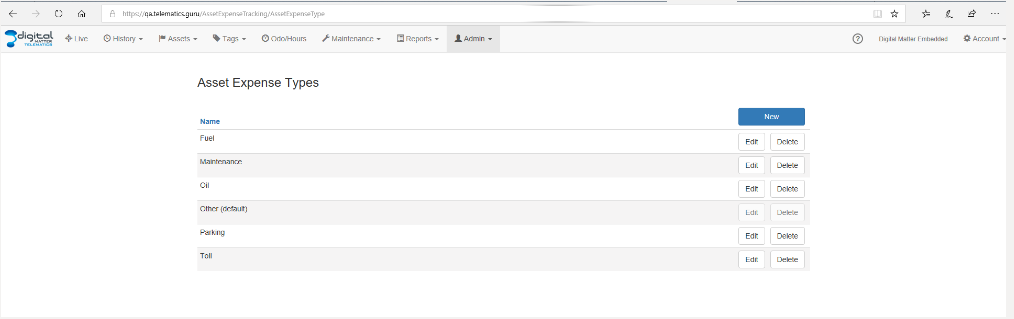
Expense types can be added if the user has “Expense Manager” permission, under Admin->Asset Expense Types.
Reporting on Asset Expenses
-
Expense List Report
Organisation Level Report listing all expenses in a date range.
Expense Summary Report
Summarised view of expenses by Asset, Expense Type.
Note: These reports can also be scheduled

Notes
When deleting an asset, any assigned expenses will also get removed. When deleting projects, departments or drivers the user will be presented with a dialog if he wants the expenses to remain or get deleted (the remaining expenses will have their comment amended to include some information about the deletion). If the user does not have the appropriate permission, they cannot delete the projects, drivers, departments or assets.
Users with "Expense Manager" permissions are able to view all Asset Expenses that are captured, including those captured by other users. Users with only "Expense Capture" permissions are only able to view and access the Asset Expenses captured by themselves.
Permissions
- Expense Capture – Capture expenses and edit/delete expenses that were captured by the user
- Expense Manager - Capture expenses and edit /delete expenses captured by any user. Can also add additional expense type
