Connecting to Telematics Guru over MachineQ

Written by Matthew Clark-Massera
Updated at July 13th, 2023
Table of Contents
Sign up for a MQcentral account
MachineQ is backed by Comcast to make it simple to build, connect and deploy LoRaWAN solutions.
Browse to MQcentral front page, and click 'Sign Up'. Follow the prompts, and complete the email verification step.
2. Open MQcentral
The portal is where you register your devices and create the HTTP integration to Telematics Guru
3. Add your Device
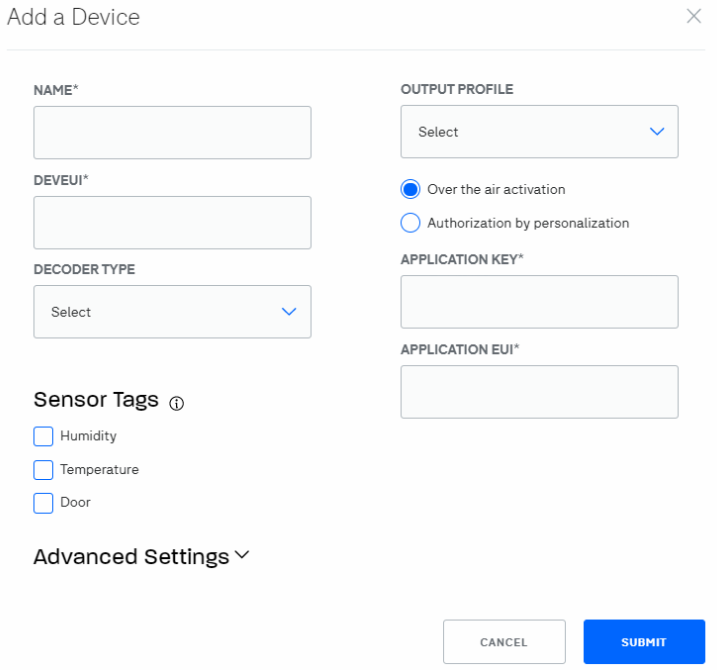
Browse to the Devices screen in the poral, and click 'Add A Device' in the top right corner. The fields, Name, Dev EUI, App EUI, App Key will need to be entered. Name can be populated with any desired entry but Dev EUI, App EUI, and App Key will need to be the credentials provided with the Digital Matter device.
The remaining fields can be left as is.
4. Add an Integration
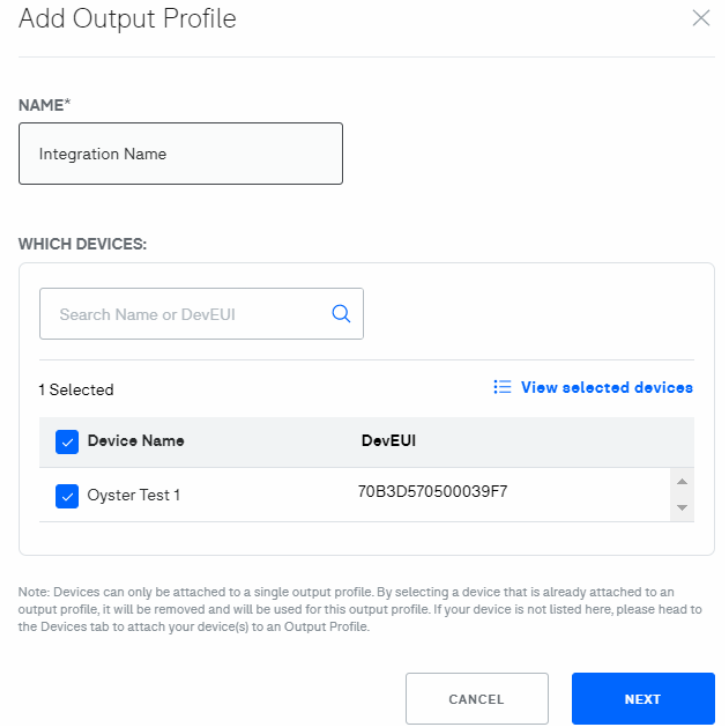
Browse to the Integrations screen in the portal, and click 'Add Output Profile' in the top right corner. Each device type (Oyster, Yabby, Guppy, or G62 will need its own output profile. All new devices added after this is created can be assigned in the corresponding device type profile.)
You will then be able to name the Output Profile and select the device created in the previous step. Once named and the device is selected you will select next.
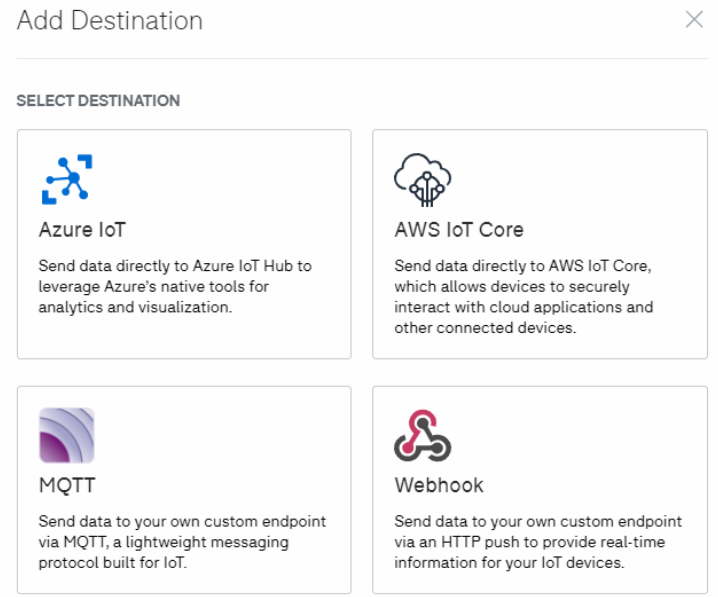
The destination will be a Webhook, so that box will need to be chosen. This will prompt you to and the URL, output format, token type, and token value for the integration to Telematics Guru.
Based on which regional server your partner account is hosted you will need to use the related URL shown in the table below in the URL section. The output format will remain as extended. The token type will always be Authorization.
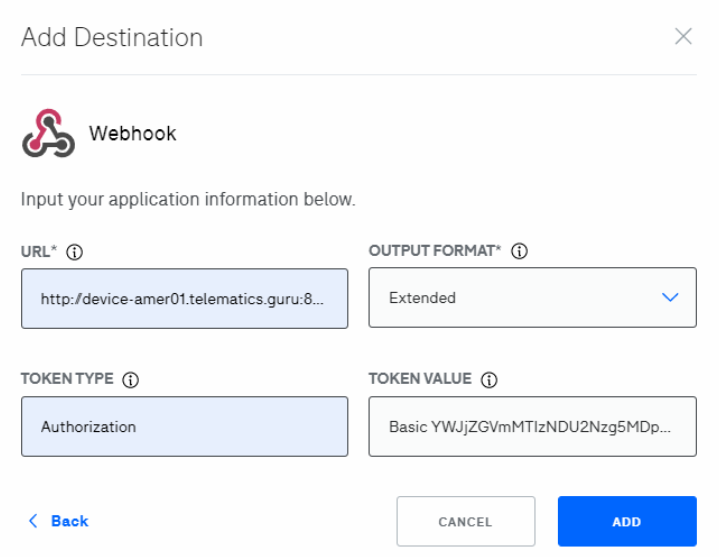
The token value should be set using a special username and password obtained from Telematics Guru. TG support will provide these details. The username and password should be combined in the format username:password, and then base64 encoded.
For example: abcdef1234567890:fedcba0987654321abcdef1234567890 (username:password) base64 encodes to YWJjZGVmMTIzNDU2Nzg5MDpmZWRjYmEwOTg3NjU0MzIxYWJjZGVmMTIzNDU2Nzg5MA== and should be used in the value section as:
Basic YWJjZGVmMTIzNDU2Nzg5MDpmZWRjYmEwOTg3NjU0MzIxYWJjZGVmMTIzNDU2Nzg5MA==
HTML
Based on which regional server your partner account is hosted you will need to use the related URL for the endpoint. The end of the URL dictates which device type. You will need to input oyster, yabby, g62 or guppy depending on device type.
5. Create an asset on Telematics Guru
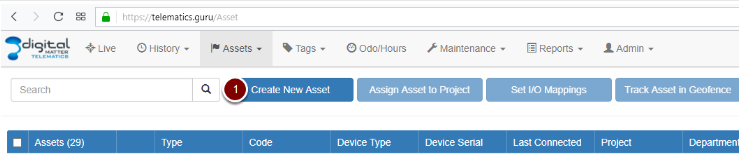
Log in to your Telematics Guru account, navigate to the Assets page, and click Create New Asset:
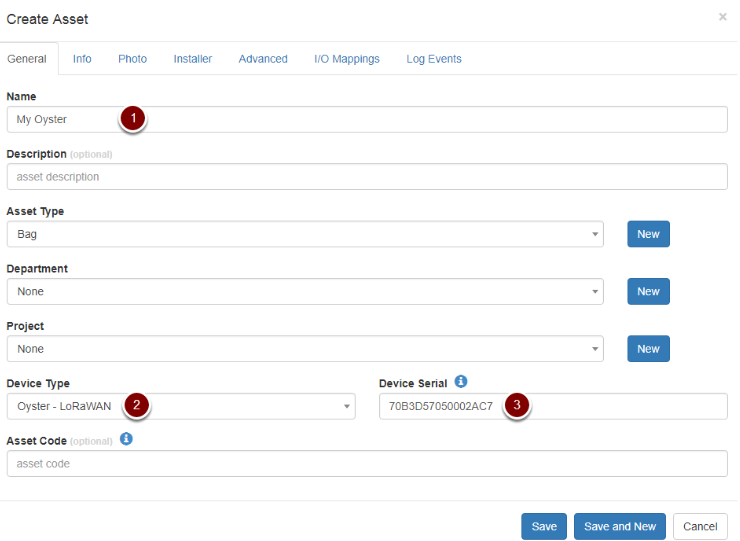
Now choose a name, select the correct Device Type, enter the DevEUI in the Device Serial field, and click Save:
If all of the previous steps have been followed correctly, new data points should start populating the Telemetry and IO Telemetry pages as soon as the device gets its first GPS fix. The device's location should also start updating on the live tracking page.
