Updating Bluetooth® Firmware on Device Manager
Keeping your BLE Gateway devices up-to-date with Device Manager

Written by Jake Tannenbaum
Updated at May 20th, 2024
Table of Contents
Visit our website for a quick explanation of the use of Bluetooth® in our device range and the applications that it enables.
OEM Server vs Device Manager
Device Manager is the successor to OEM Server, and offers greater ease of use and features. This article references functionality in Device Manager only, for the legacy page on OEM Server, please refer to: Bluetooth® Getting Started - Tags & Scanning - Digital Matter
This guide will walk you through the steps required to bring your Bluetooth® device firmware up to the latest version. When bringing a device online for the first time, we recommend updating your Bluetooth firmware before deploying it into the field as the version it received during production may not be the latest version. As always, when dealing with a large deployment, it is always a good idea to complete this process with a single, or handful of devices before rolling it out more broadly as there is always the chance that an unknown variable will impact connectivity.
Step 1: Update to Latest Device Firmware
For details on how to update device firmware please see: Bulk Firmware Update - Digital Matter
Device Firmware and Bluetooth Firmware
When it comes to updating any kind of firmware on a Bluetooth® device, we recommend updating both Bluetooth® firmware and device firmware at the same time. A mismatch between device firmware and Bluetooth® firmware versions may cause incompatibility issues that can impact the performance of your device.
Step 2: Setting the Bluetooth® Firmware
Setting Bluetooth Firmware from the Device Grid
- Perform a search or filter within the Device Grid so that your device appears as a row.
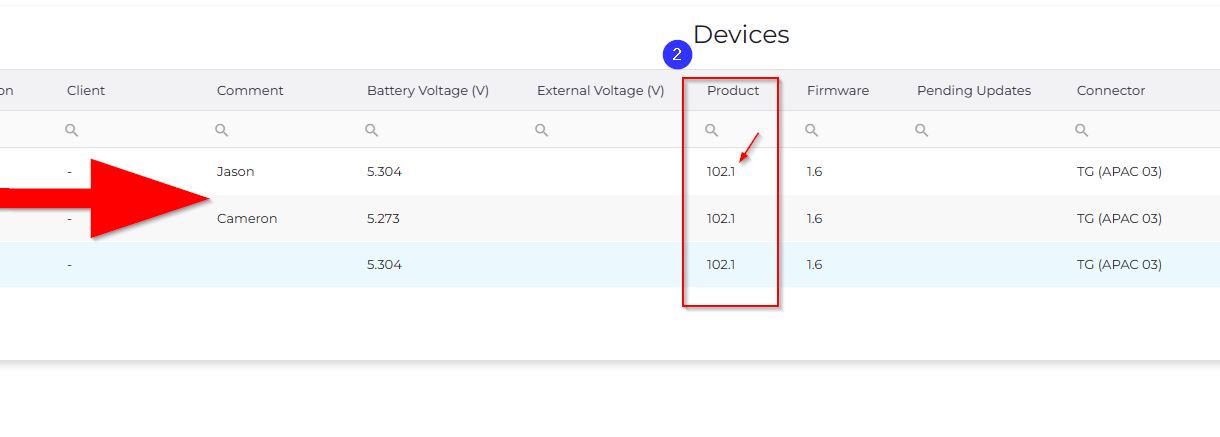
- Switch to the Detail tab and scroll to the right until you can see the Product column.
- Note down the number after the decimal place for your device's row. This is the hardware revision version. For example:
102.1would be revision 1. You will need this number later when selecting the appropriate firmware.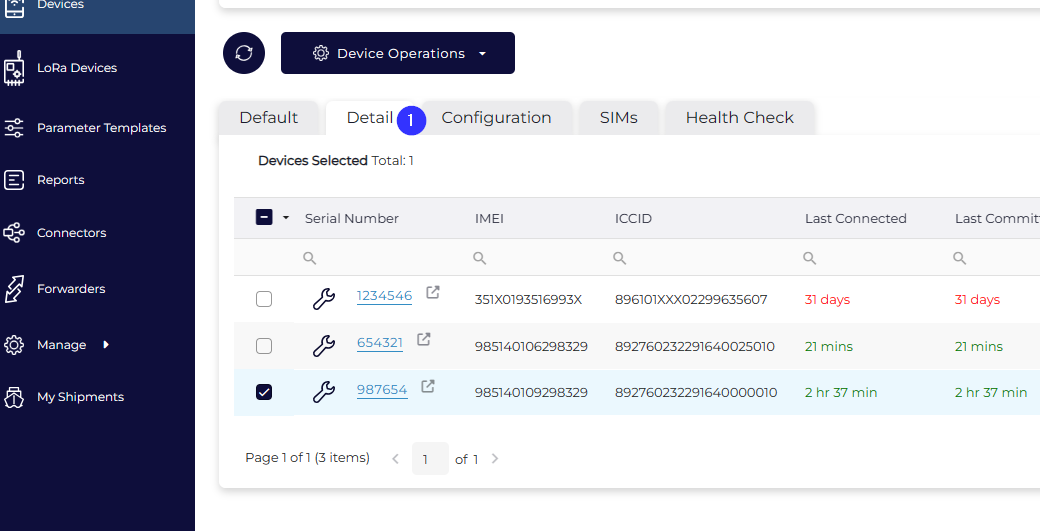
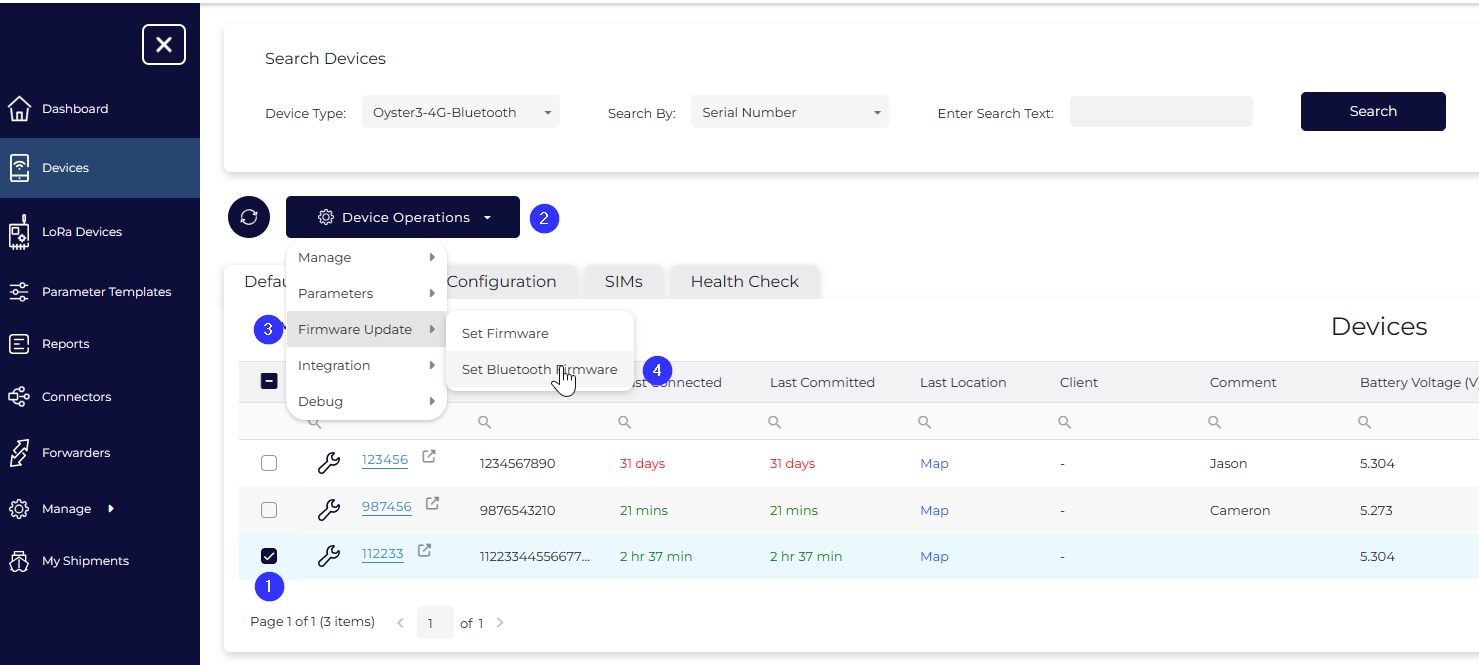
- Select the device(s) in the Device Grid with the checkbox
- Open the Device Operations drop-down menu
- Select set Bluetooth® firmware
-
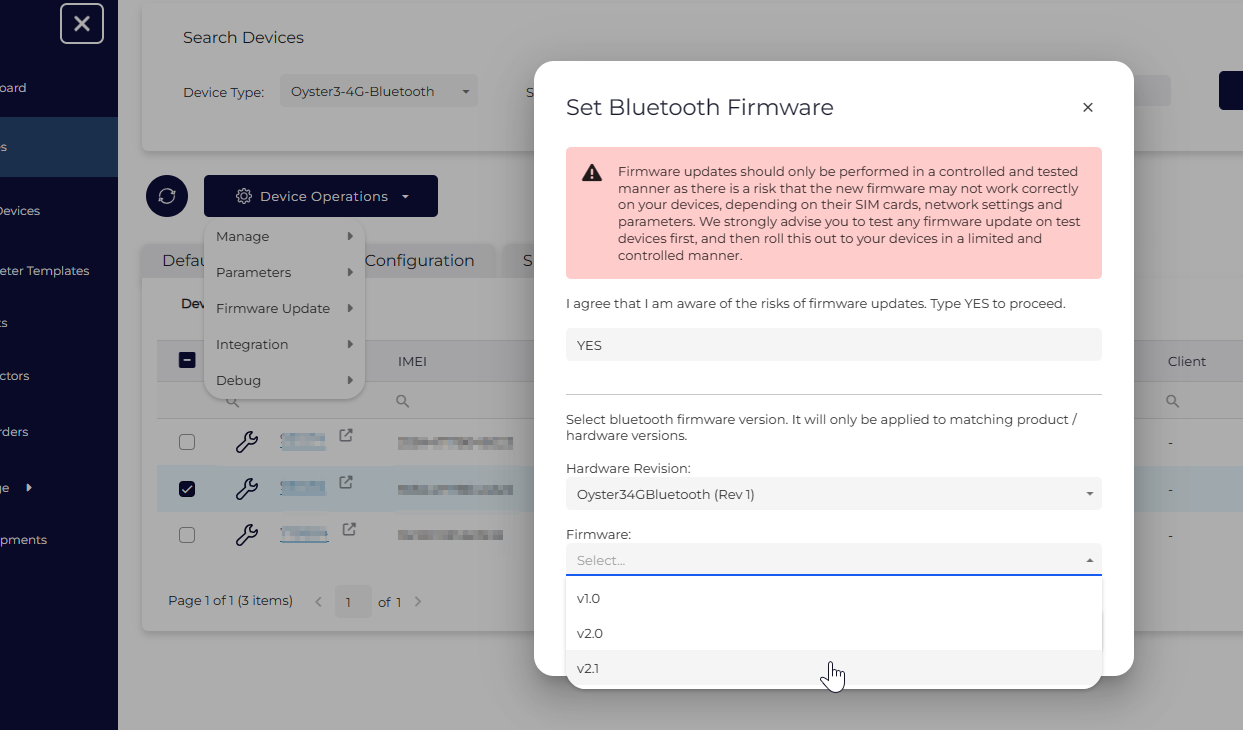
In the dialog that opens, type
YESonce you have read and understood the warning.
- Select the appropriate revision from the Hardware Revision drop down with the revision version you obtained at step 3.
- Select your desired firmware version from the Firmware dropdown and click OK. Unless following specific advice, the latest version is desirable.
- When your device next checks-in with Device Manager, it will receive instructions to begin downloading the firmware update and then install it. As with any firmware updates, the device will need to shut down and restart for the firmware update to take effect
Monitor the status of your Bluetooth® firmware update by navigating to the Device View page for a device and scrolling to the blue section under the Details tab. Your current firmware version will be listed on the left, and your prospective version will be listed after the “→” symbol.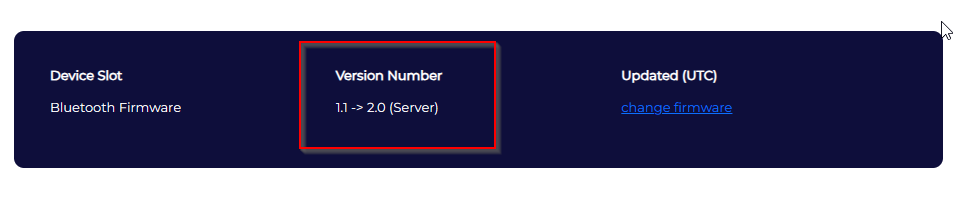
When the only number appearing in this area is the version of Bluetooth® firmware that you chose for update, the process has been completed.
