Run Hours + Odometer in TG

Written by Matthew Clark-Massera
Updated at November 13th, 2026
Table of Contents
Run Hours + Odometer in Telematics Guru
Telematics Guru calculates run hour and odometer estimates from device data. This article explains how the estimates work, how to enter current readings, and how to track secondary run hours.
Run Hour Calculation
The time for which an asset's Ignition input is active is added up to calculate run hours. For Digital Matter devices, this is Digital Input 0 by default.
If you use a third-party device or a different input to track run hours, you may need to adjust which I/O is designated as Ignition under I/O Mappings.

Accuracy
Run hour accuracy depends on the ignition input detecting changes correctly. Telematics Guru needs two points from a trip:
Usage Start Time (Trip Start log).
Usage End Time (Trip End log).
On hard-wired devices, run hours will be highly accurate when the white ignition wire is connected to the correct ignition source.
For battery-powered devices, jostle mode can start and end trips based on accelerometer activity. The trip end timeout is included in the run hour reading.
Odometer Calculation
Telematics Guru calculates the total distance travelled while the ignition input is active.
The calculation uses the positions (latitude and longitude) recorded during the trip. Devices that report infrequently will be less accurate. Hard-wired devices report regularly while moving, including heading changes and cornering, to support accurate odometer estimates.
On-Board Odometer and Run Hours
Some devices calculate and report odometer and run hour values on-board:
See On Device Odometer and Run Hours for setup instructions, including support for the Bolt2, Dart3 and G120.
The feature is also available on the Bolt, Dart2, G120 and G62, using the same setup approach.
When a device is configured to send trip distance and duration at the end of a trip, Telematics Guru replaces its calculated values with those supplied in the device payload. The on-board odometer value uses second-by-second GPS data gathered by the device and can be more accurate than a server-side calculation based on less frequent positions.

This can support low-cost tracking on the TG-PPM plan. If Telematics Guru is used mainly for maintenance, reducing other logs can save data and Telematics Guru costs. For example, the device can log trip start and trip end, with an odometer update at trip end.
Add Run Hour and Odometer Readings
Enter the asset's current readings so that Telematics Guru starts from the existing odometer and run hour values rather than zero.
Via the Web App
Use the asset creation dialogue for a new asset, or the Odo/Hours menu for an existing asset.
When Creating an Individual Asset
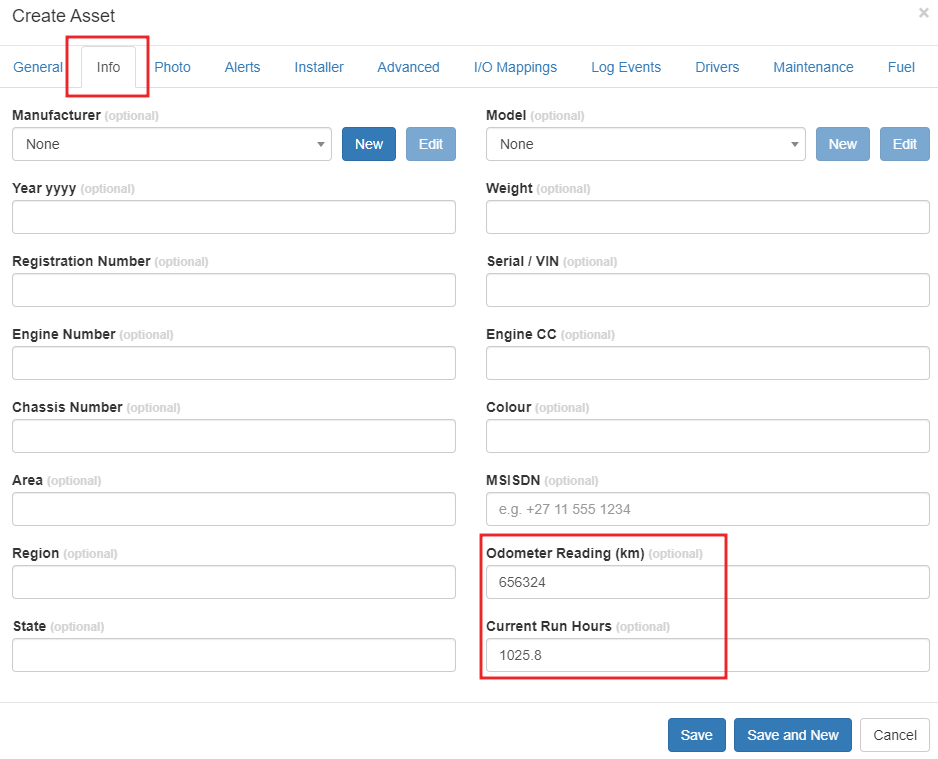
Add the odometer and run hour readings in the Info tab of the Create New Asset dialogue.
When Bulk Importing New Assets
When creating assets from a CSV file, starting readings can be supplied in OdometerReading and RunHours, with UnitOfMeasurement specifying the odometer distance unit. These are part of the wider asset import template. See Bulk Importing Assets in Telematics Guru for the import workflow and complete field reference.
Existing Assets
A newly created asset starts with run hour and odometer readings of zero unless readings are entered. If the device is installed on an asset that has already been used, enter its current readings through Odo/Hours.

Enter the odometer and run hour readings.
Reading Date Time defaults to the current time. You can change it to an earlier date, for example if an installer took the reading a week before it was entered. Telematics Guru calculates the hours using that reading date.
Via the Mobile App
Capture asset readings in the mobile app to enter them at the time of installation.

Towing Trips
Most devices use emulated ignition. When movement is detected by the accelerometer or GPS, the device sets Digital Input 0 (ignition) on. Telematics Guru treats this as usage and increments the run hour and odometer values.
To prevent this, disable the emulated ignition input under the Movement Trips tab in the device's system parameters.

Telematics Guru still shows the trip in its Trip List, but marks it as a transported trip: the asset moved while the ignition was inactive. This is typically the case when equipment is towed or moved on a flatbed trailer.

Secondary Run Hours
Telematics Guru can also track secondary run hours from a digital input. For example, connect Input 1 to a pump on a truck to accumulate the pump's operating time for billing or maintenance.
Secondary run hours keep a total only. Unlike primary run hours, they cannot be reported on a trip-by-trip basis.
To edit the total directly, go to Manage Assets > Edit Asset > Advanced and enter the current secondary run hours.

Link an Input to Secondary Run Hours
Go to Admin > Event Types and select New. Give the event a name and select Log Duration To Secondary Run Hours.
Go to Manage Assets > Edit Asset > IO Mapping. Under Digital Mappings, select Add, choose the relevant input and name it. Under Event Type, select the event you created.
When the input is on, the event is active and its duration is added to the secondary run hour total.
| Event Configuration | Input Mapping |
|---|---|
 |
 |
Events and Alerts
See Events vs Alerts for more information about linking events and alerts.
Next Steps
Check that each asset has an appropriate current reading and the correct ignition mapping, then use the readings to plan servicing with Scheduled Maintenance Reminders.
