Contact Us

    If you still have questions or prefer to get help directly from an agent, please submit a request.
    We’ll get back to you as soon as possible.

    Please fill out the contact form below and we will reply as soon as possible.

    • Digital Matter Site
    • Contact Us

    Single Sign on in Device Manager

    Written by Matthew Clark-Massera

    Updated at May 28th, 2024

      Contact Us

      If you still have questions or prefer to get help directly from an agent, please submit a request.
      We’ll get back to you as soon as possible.

      Contact Support
      • Home
      • Device Manager
      • Getting Started with Device Manager
      • Users and Access

      Table of Contents

      Single Sign on Setup:

      The following steps outline how to configure OpenID Connect with Device Manager to enable Single Sign-On authentication with Microsoft Entra ID.

      1. In the Azure Portal, navigate to Microsoft Entra ID 


      2. Navigate to App Registrations


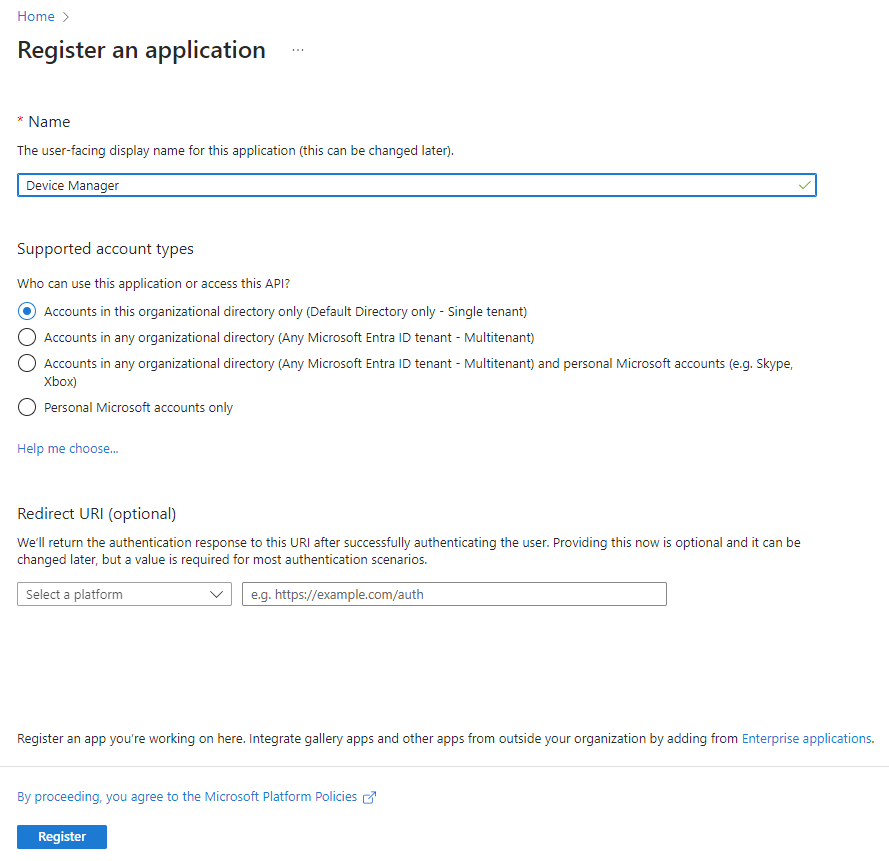
      3. Create a new app registration


      4. Give the application a Name and set the Supported Account Types to “Single Tenant”

         
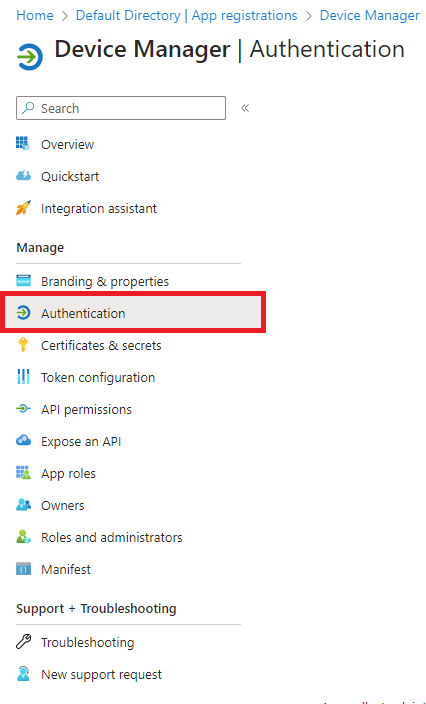
      5. Navigate to Authentication


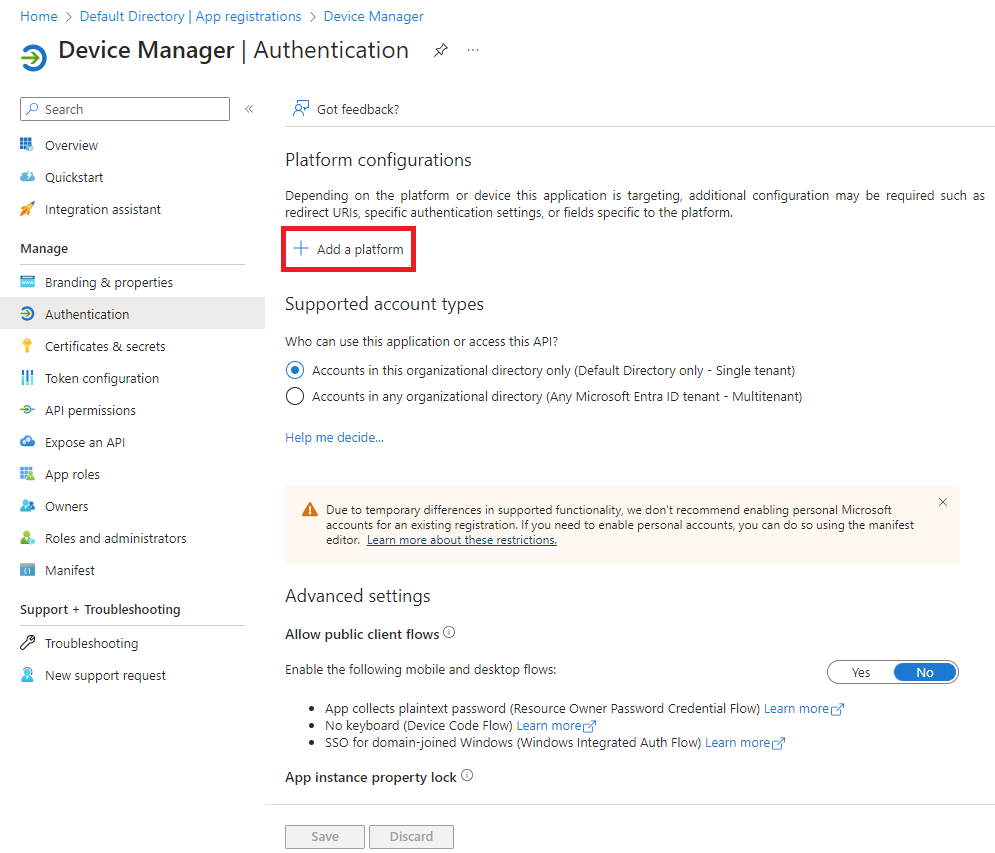
      6. Add a platform


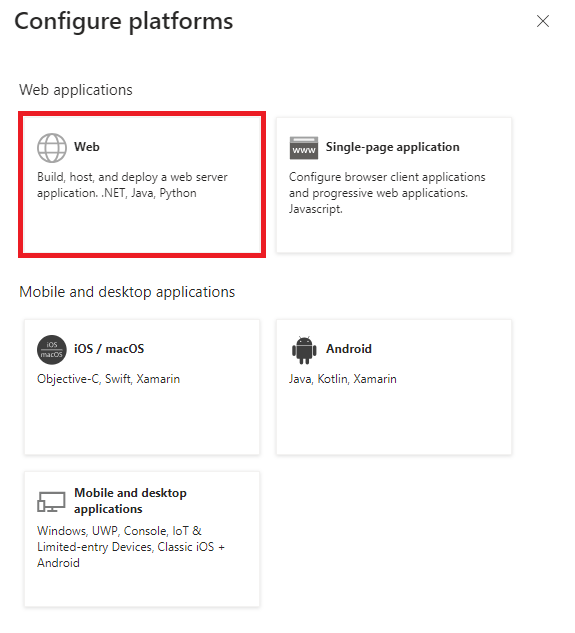
      7. Select Web platform


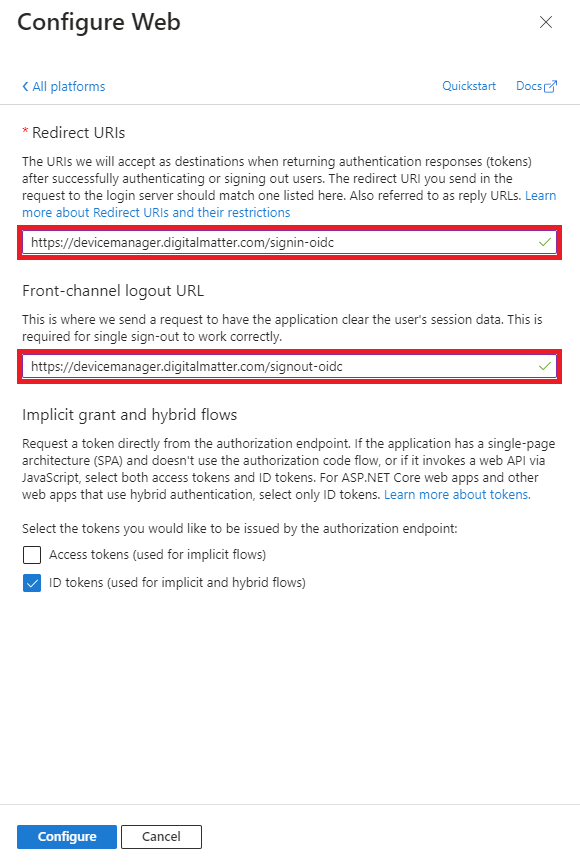
      8. Add the Redirect URIs relevant to the region of your Device Manager instance 
        1. United States
          Redirect URI: https://devicemanager.digitalmatter.com/signin-oidc 
          Logout URL: https://devicemanager.digitalmatter.com/signout-oidc
        2. European Union

          Redirect URI: https://devicemanager-eu.digitalmatter.com/signin-oidc 
          Logout URL: https://devicemanager-eu.digitalmatter.com/signout-oidc


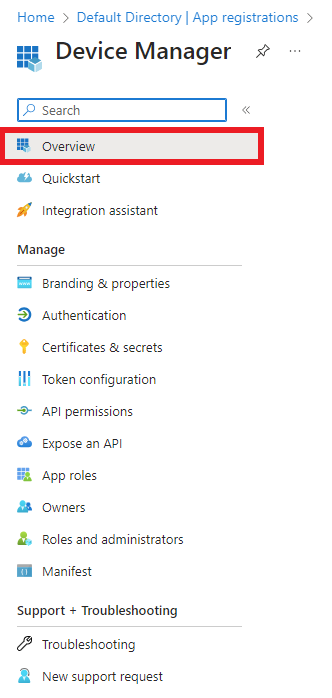
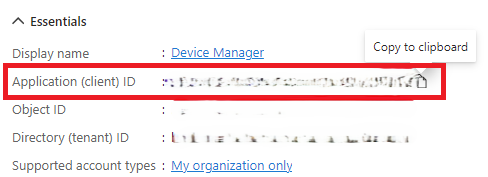
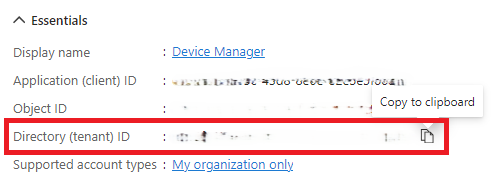
      9. Navigate to Overview

         
      10. Copy the Application ID to Notepad


      11. Copy the Tenant ID to Notepad


      12. In Device Manager, navigate to Single Sign-On
        (If you can't see this contact support)


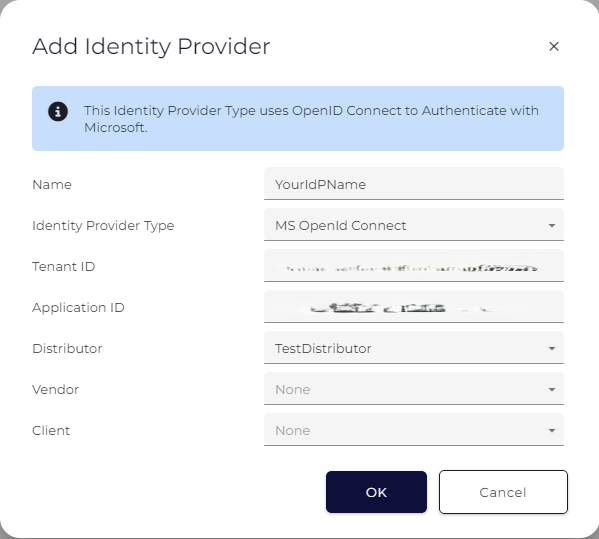
      13. Add new Identity Provider


      14. Add Identity Provider using the Application ID and Tenant ID from Microsoft Entra ID
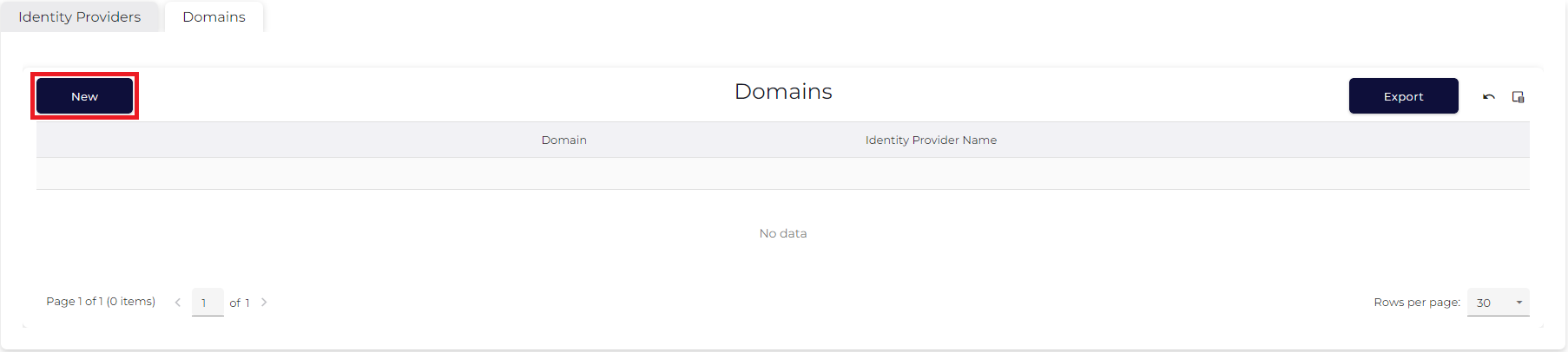
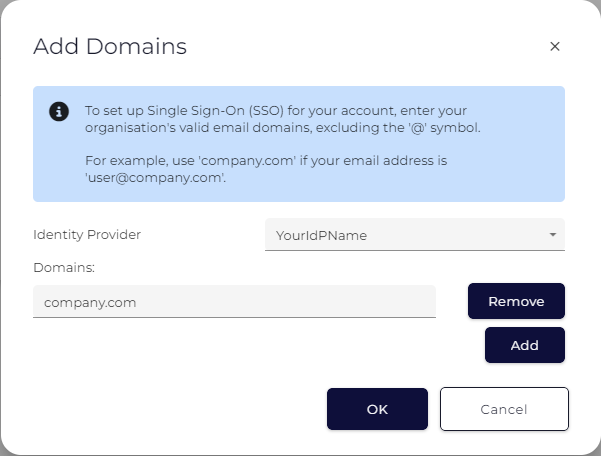
      15. Add new Domains


      16. Add the domains that will be used for Single Sign-On with the Identity Provider
      device control unified login sso single sign-on authentication azure portal microsoft entra id openid secure single sign on

      Was this article helpful?

      Yes
      No
      Give feedback about this article

      Related Articles

      • Setting the Network Profile - LTE-M/NB-IoT devices
      • SIM Providers: LTE-M/Nb-IoT + Roaming, and Setup
      • 4G APN - How do I set the APN to connect to the network?

      Subscribe to Partner News

      Subscribe to our mailing list to receive Digital Matter news, product and tehnical updates, and more.

      Subscribe

      Copyright © Digital Matter . All Rights Reserved.

      Privacy Contact Support

      Knowledge Base Software powered by Helpjuice

      DM Logo
      Expand