Speed Monitoring

Written by Matthew Clark-Massera
Updated at August 7th, 2025
Table of Contents
Applies To
| Device | Firmware Versions |
|---|---|
| Arrow Global BLE | All FW versions |
| Dart3 2G, Dart3 4G and Dart3-Global | All FW versions |
| G70 2G and G70 4G |
All FW versions Additional logging options available in 1.14+ |
| G120 2G and G120 4G | All FW versions |
| G150-Global | All FW versions |
| Remora3 4G | 1.6+ see speed monitoring on the Remora3 for details on configuration for this device |
- The Arrow Global BLE, Dart3, G70, G120, G150 and Remora3 have an onboard speeding parameter which allows a maximum speed Threshold (km/h) to be stored on the device.
- The Arrow Global BLE, Dart3, G70, G120 and G150 have the option to sound a buzzer when the GPS speed exceeds the set Threshold. The buzzer will remain active until the GPS speed drops by the Delta (km/h) value below the Threshold.
- Additionally, the G70 has four different logging options that define the device logging behaviour when the device speed is above the threshold
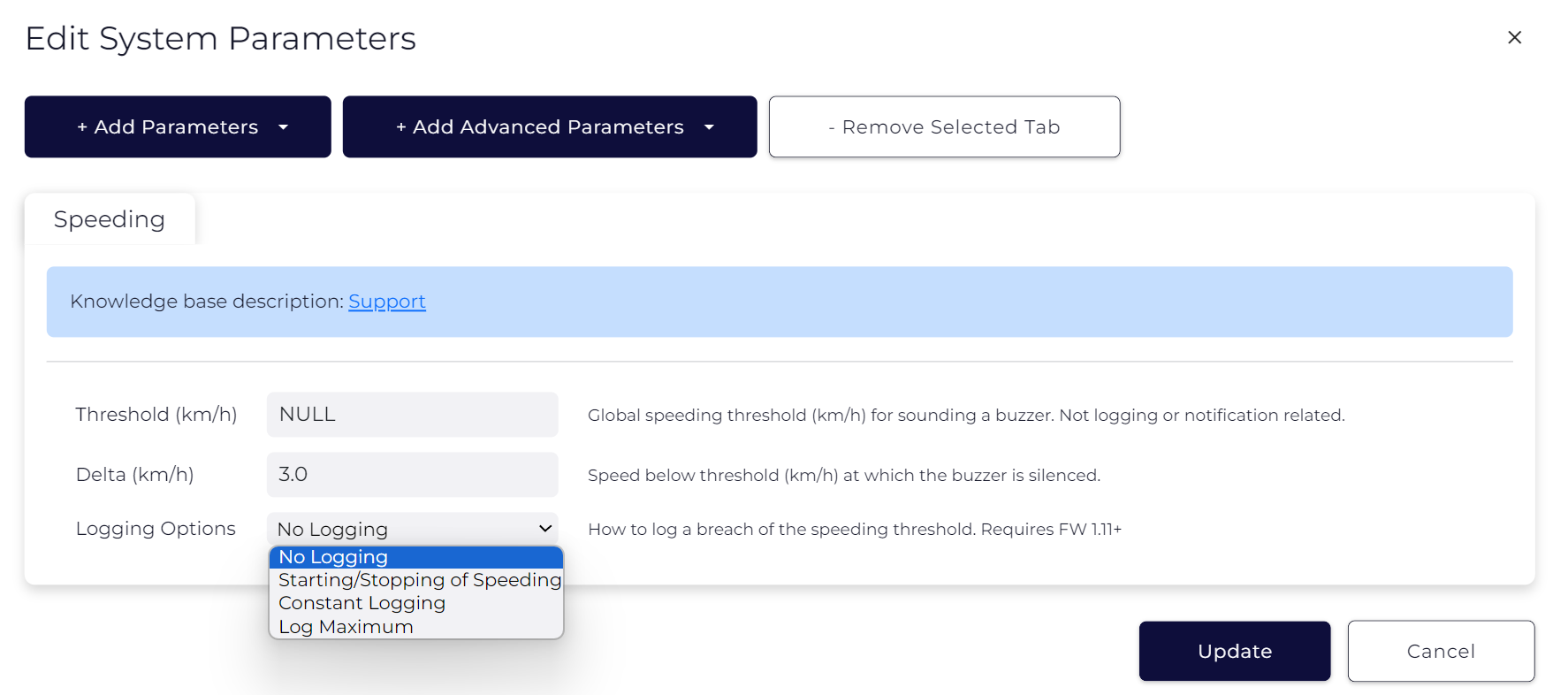
No Logging
The device will only buzz when over the threshold. Logging is as per the parameters configured in the "Logging" parameter tab (i.e. default every 60sec or every 500m). There are no records logged as a result of the threshold being breached. This is designed to control driver speed with in-cab buzzer feedback.
Starting/Stopping of Speeding
In addition to buzzing when over the threshold, the device will log a record at the Start and End of speeding. This allows for precise speeding durations to be determined server side.
Logs generated for start/end of speeding will use log reason 18 - Over Speed
Constant Logging
In addition to buzzing when over the threshold, the device will log a record for every point it records while the speed is above the threshold. This means second-by-second logs when the device is above the threshold.
These logs will use log reason 18 - Over Speed.
Use Caution when configuring this option as it will result in additional data usage, and many records being sent for processing by the end server if drivers speed for extended periods.
Log Maximum
In addition to buzzing the device will log Over Speed records (reason 18) - on:
- Start of speeding
- End of speeding
- New maximum speed
So if the threshold is breached, and the speed gradually increases, we will get records with each 1km/h increase. Then if it dips again (but stays above the threshold) there will be no logs until it either exceeds the previous maximum, or speeding ends.
This means we get enough logs to identify the start point, endpoint, duration, and max speed of any speeding event.
Buzzer Setup
To setup an external buzzer, see - Connect an External Buzzer/LED
- When parameters are set to buzz, such as buzzing on over speed and buzz on no driver ID - the firmware tells the following outputs to buzz
- The internal buzzer in the RFID driver ID reader, if connected
- Any outputs set to 'buzzer'
- The internal buzzer on the G120 or G150 PCB
So if you are already using the DM RFID reader - there is no need to wire any additional buzzers!
Parameter Example 1
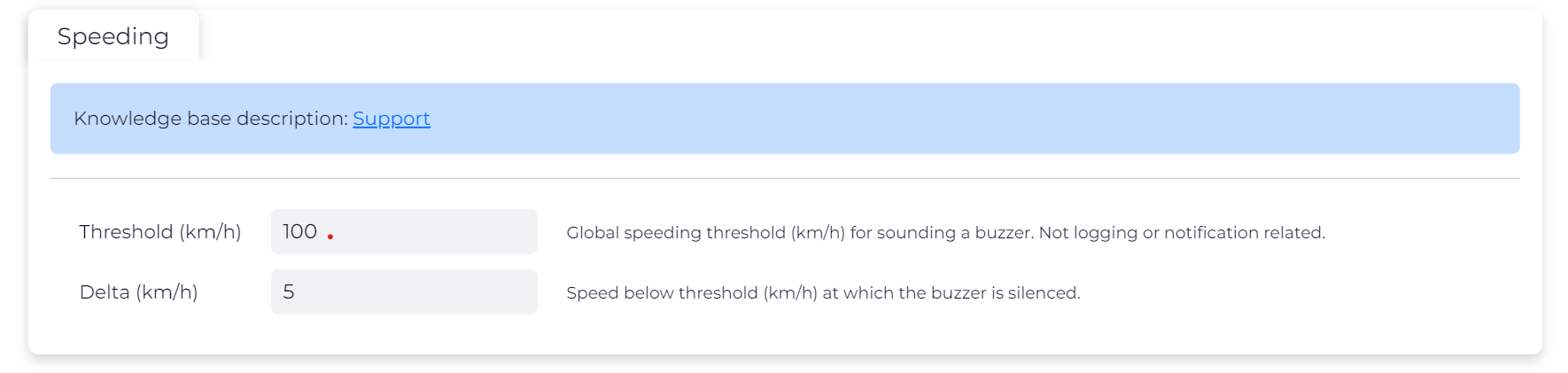
Example: If the customer wants a buzzer to sound when 100 km/h is breached and to turn off when the speed drops 5km/h under this threshold once breached. Your settings would be the following:
Parameter Example 2: Monitoring Multiple speed thresholds
Some organizations require two separate speed thresholds with in-cab feedback for the driver, for example:
- Travelling over 100km/h - turn a light on in the cab to warn the driver
- Travelling over 110k/mh - sound a buzzer
This can be configured by making use of the “Speeding” and also “Input Monitor” parameters.
The Input Monitor can be configured to act as the first threshold, and we configure the Speeding threshold as usual for the second to sound the buzzer.
Since this setup requires two digital outputs to act independently, the applicable devices for this configuration are the Dart3 and G150. You will also need a light and a buzzer which will activate on the different speed thresholds.
Setting up the LED - configuring the light to activate at a specific speed threshold.
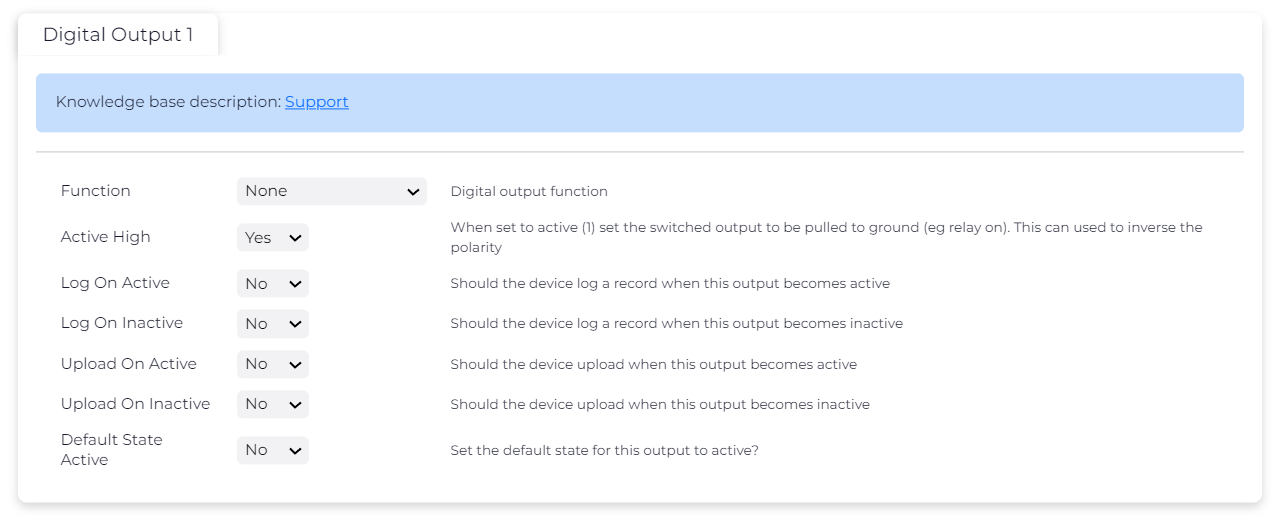
- Wiring the Light: Connect the high side of the light to power, and the low side to SW GND on the Dart3.
- Configuring the Input Monitor: Navigate to the Input Monitor tab on the device configuration interface. Enable the Input Monitor by selecting "Enable" from the dropdown menu. Set the Speed Threshold to 101 km/h and the Speed Hysteresis to 2 km/h. This setup ensures that the light will activate when the speed exceeds 101 km/h and deactivate when the speed drops below 99 km/h (101 km/h minus the hysteresis value). Please article: Input monitoring


Setting Up the Buzzer - configuring the buzzer to sound at a slightly higher speed threshold.
- Configuring the Global Speeding Threshold: Navigate to the Speeding tab. Set the Threshold to 104 km/h and the Delta to 2 km/h. This means the buzzer will sound when the speed exceeds 104 km/h and will stop when the speed falls below 102 km/h.
-
Configuring the Buzzer Settings: In the Input Monitor tab, set the Output Type to "Buzzer". Then, configure the Buzzer Beep On Period and Buzzer Beep Off Period to define the intervals at which the buzzer will sound and be silent. For example, setting both periods to 500 ms will result in the buzzer sounding for 500 ms and then being silent for 500 ms, creating a continuous beeping pattern.

Using the RFID Reader for Buzzer
If you prefer, you can use the built-in buzzer of our RFID reader for speed threshold alerts. This is often the simplest option as it eliminates the need for additional wiring.
Speed Alerts in Telematics Guru
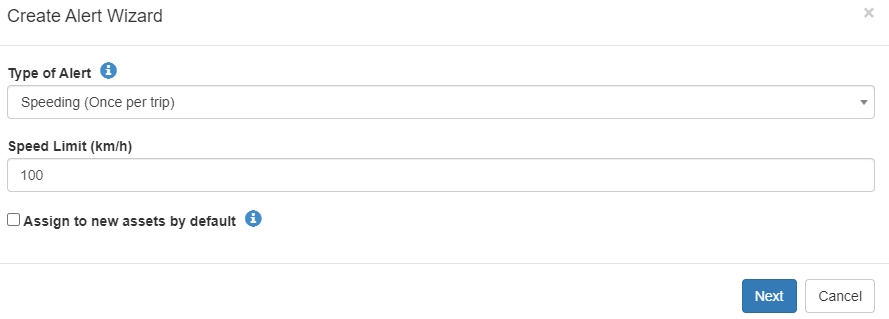
The speed is reported with each log and can be alerted on in TG. We can use the Alert Wizard - Speeding (Once per trip) to setup the Speed Limit alert threshold.
TG has a huge selection of reports and ways to report on speed, see Speed Monitoring in Telematics Guru.
Note: Speed alerts on Third Party platforms can use the speed reported in FID = 0 to alert on overspeed.
Log based on Speed Change
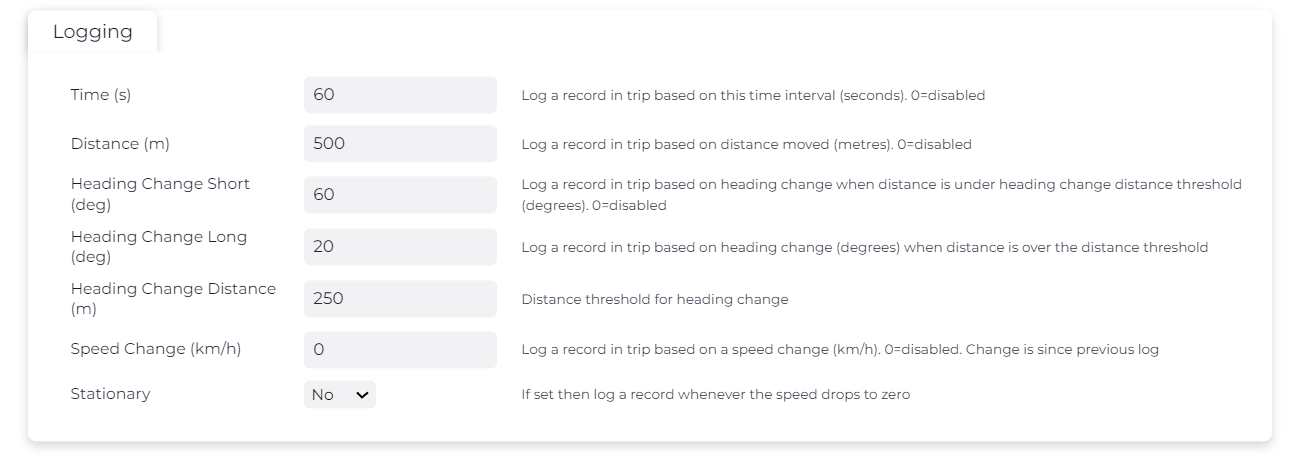
You can set the Speed Change parameter under the Logging parameter tab to record additional logs in trip if the speed changes. This change is since the previous log.
Buzz When Speeding Inside Geofence
Geofence downloads can be used to trigger a buzzer when speeding inside a geofence. See Geofence Downloads Example: Buzz when over 40km/h inside geofence
