Coordinate Age and Invalid Fixes

Written by Matthew Clark-Massera
Updated at July 6th, 2026
Table of Contents
Coordinate Age tells you how old a device's last known position is. It's used to spot when a location on the map might be out of date.
How Coordinate Age is Calculated
Coordinate Age is the gap between two timestamps:
- GPS Time: when the fix was actually taken
-
Record Time: when the device uploaded the record
If a fix fails, the device re-sends the last good fix. Record Time ends up later than GPS Time, and the difference is the Coordinate Age.
Unknown Coordinate Age
If Coordinate Age shows as Unknown, that's a good sign. It means GPS Time and Record Time match, so the fix is current.
View Coordinate Age
In Live View:
- Go to Live View
- Click on the relevant asset
- Coordinate Age is shown in the pop-up

In Telemetry:
- Go to Assets → Telemetry
- Find the GPS Age column

Show Asset Coordinates Required
Show Asset Coordinates must be enabled under the Organisation settings for this to display
Why Coordinate Age Differs by Device Type
Not all devices get their location the same way. This changes how Coordinate Age behaves.
GNSS Devices
Examples: Oyster3, Barra GPS, Remora3.
These devices get a fix directly, on the device. Coordinate Age always calculates normally.
Location Engine Devices
Examples: Manta Fusion, Edge devices.
These devices can fall back to WiFi or cell towers when GPS isn't available. That data is resolved into a position later, in the cloud, by the Location Engine.
This is Expected
A missing Coordinate Age on a Location Engine device is not a fault. Check the Telemetry log instead to confirm freshness.
Externally Powered Devices
Examples: Bolt, G70, Dart3.
These devices don't get a new fix on every heartbeat while parked, so Coordinate Age will climb. This is normal.
- Latest firmware: tops out around 2 hours
- Older firmware: climbs by an hour per heartbeat
Once a trip starts, Coordinate Age should drop back to 0 or Unknown.
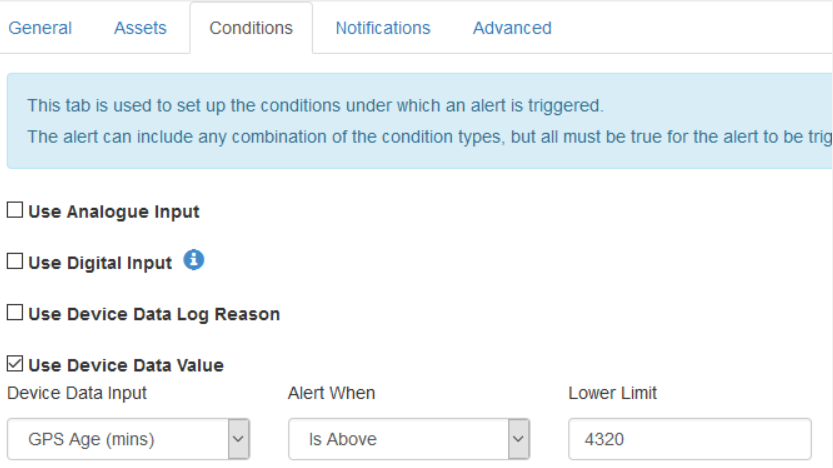
Set an Alert for Old Coordinate Age
- Go to Admin → Alerts
- Create a new alert
- Set the condition to Coordinate Age
- Enter the threshold in minutes
- Save
Use with Caution
Stationary devices may not send a new fix even when working correctly, since the device knows it hasn't moved. This can trigger false alerts.
Add Coordinate Age to a Report
- Open the relevant report
(Device Data Export, Device Telemetry Export, or Partner Asset List Report) - Click Advanced → Customise
- Add the GPS Age (AKA Coordinate Age) column
- Save
Partners can run this at Partner Level using the Partner Asset List Report, following the same steps.
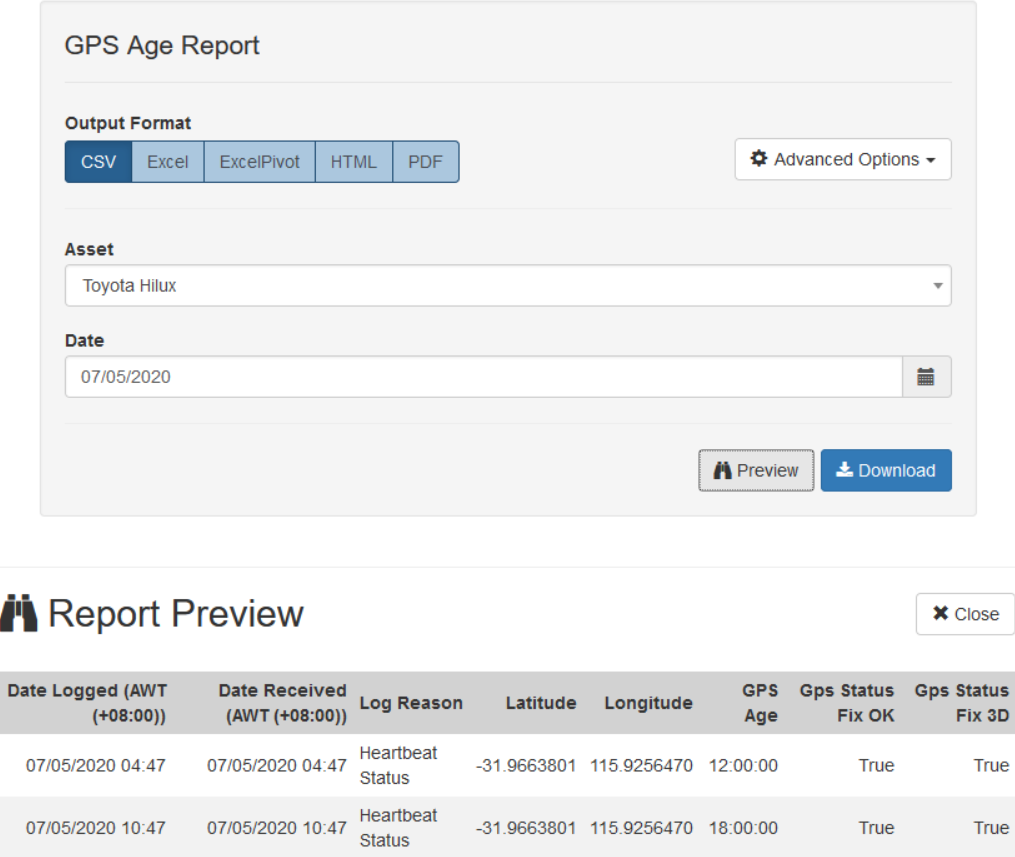

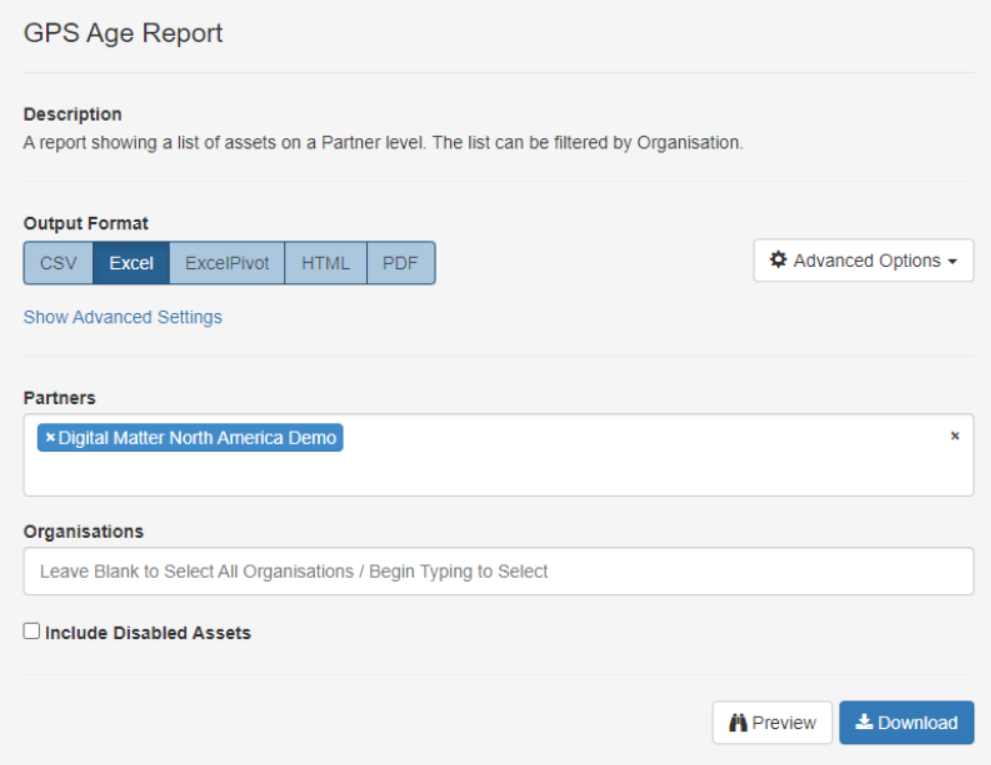

You can also set up alerts to tell you when a device hasn't got a new fix in a set amount of time in minutes. Be careful when using this alert value condition due to how a device might not update its GPS fix when it calculates that it has not moved from a previous location (particularly powered devices as discussed above).
This is best used for early detection of issues with battery-powered devices. E.g. send an Alert if my Oyster2s have a very old GPS Age.
Troubleshooting
GPS Troubleshooting
If you are regularly missing fixes - follow the steps in our GPS Troubleshooting article here
I cannot see Coordinate Age
Check that Show Asset Coordinates is enabled under Organisation settings. See View Coordinate Age above.
Coordinate Age is missing for a specific device
- Check whether the device is a GNSS device or a Location Engine device. See Why Coordinate Age Differs by Device Type above.
- If it's a Location Engine device (e.g. Manta Fusion), this is expected. Use the Telemetry log to confirm freshness instead.
Coordinate Age keeps increasing on a parked device
This is expected for externally powered devices such as Bolt, G70, and Dart3. See Externally Powered Devices above.
My Coordinate Age alert triggered unexpectedly
This can happen on stationary devices. See Use with Caution above, or contact Digital Matter Support for further help.
