Contact Us

    If you still have questions or prefer to get help directly from an agent, please submit a request.
    We’ll get back to you as soon as possible.

    Please fill out the contact form below and we will reply as soon as possible.

    • Digital Matter Site
    • Contact Us

    Set up SMS Alerts

    Written by Matthew Clark-Massera

    Updated at December 14th, 2023

      Contact Us

      If you still have questions or prefer to get help directly from an agent, please submit a request.
      We’ll get back to you as soon as possible.

      Contact Support
      • Home
      • Telematics Guru
      • Alerts

      Alerts can be sent via TG to a user's mobile number. Please contact your Digital Matter representative for pricing information. 

      To set up for SMS alerts: 

      1. Go to Admin -> Organisations
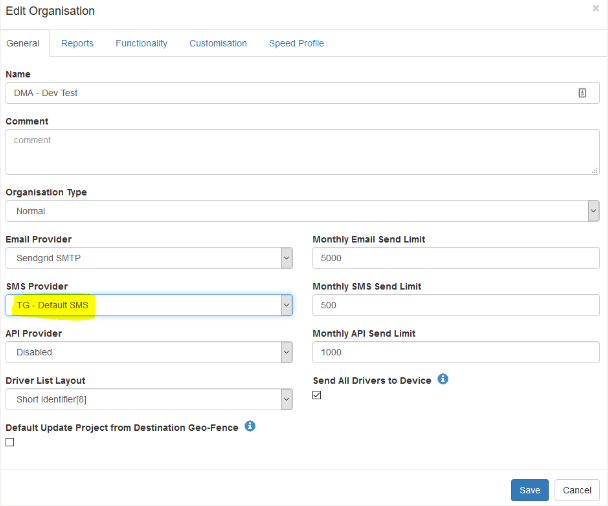
      2. Edit the organisation you wish to set up SMS for, and set the SMS provider:
        1. TG - Default SMS (Clickatell) 
        2. TG - Default SMS (SA only) for South African users. (Clickatell) 
        3. TG - Default SMS (US & Canada) for US & Canada users. (Twilio) 
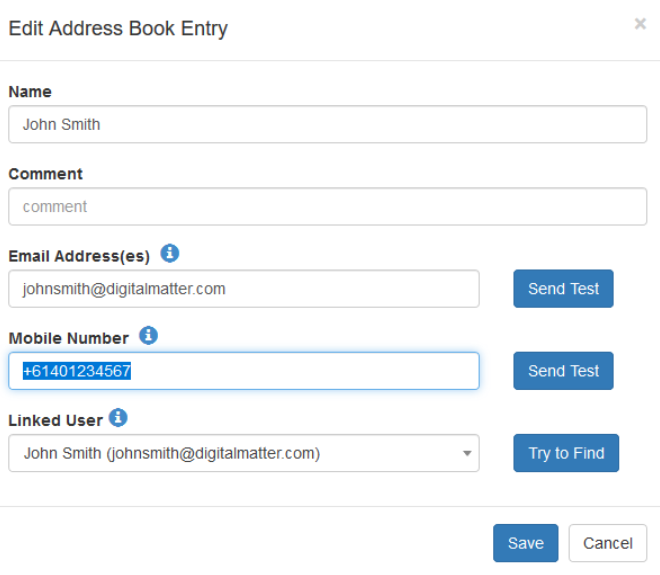
      3. Go to Admin -> Address Book and add a mobile number (with country code) to address book entries, or create another entry
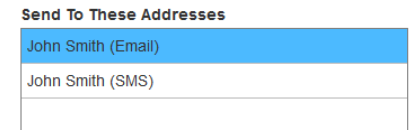
      4. In your Alert Setup, you will see an email and SMS entry for the relevant users. E.g. John Smith (Email) and John Smith (SMS). Set up the alert to send to this address.
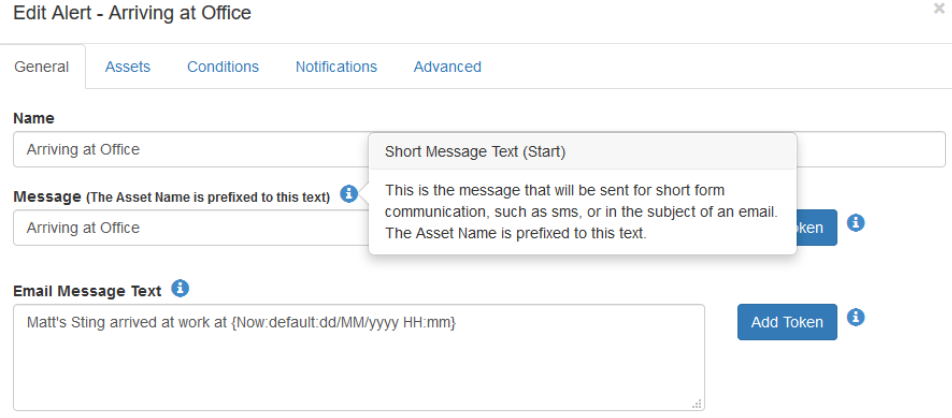
      5. (Optional)
        Edit the alert to set what you would like to be sent in the SMS.
      text alerts sms notifications

      Was this article helpful?

      Yes
      No
      Give feedback about this article

      Related Articles

      • How do I Activate a Movement Alert?
      • Telematics Guru - Alert Token Definitions
      • Why was my Alert delayed?
      • Alert and Report on the First Trip of the Day

      Subscribe to Partner News

      Subscribe to our mailing list to receive Digital Matter news, product and tehnical updates, and more.

      Subscribe

      Copyright © Digital Matter . All Rights Reserved.

      Privacy Contact Support

      Knowledge Base Software powered by Helpjuice

      DM Logo
      Expand