Falcon - Temperature Readings in Telematics Guru

Written by Matthew Clark-Massera
Updated at February 2nd, 2023
Table of Contents
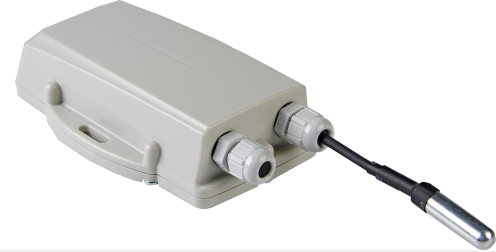
The Falcon Cellular is a super-smart, battery-powered tracking device in a rugged IP67 housing - in particular designed for asset location with temperature monitoring. This article will take you through the steps to read and report the I2C sensor readings.
digitalmatter.com
You can view the datasheet and read more about the falcon on our site!
Getting set up
Wiring in Sensors
Please review the wiring in knowledge base article on How to Connect DM I2C sensors
OEM Server Parameters
Falcon temperature System parameters
Please review the OEM Server parameters configuration for the Falcon to take sensor readings and configure task schedules
The default Analogue inputs for the sensor readings are as follows:
Analogue 7
Analog Sample (i.e. Analogue Input on the Device)
Analogue 8
DM Temperature Sensor 1 (these are the round metallic probes as in the image above)
Analogue 9
DM Temperature Sensor 2
Analogue 10
DM Temperature Sensor 3
Analogue 11
DM Temperature Sensor 4
Analogue 12
DM Ambient Sensor (Temp/Humidity Sensor) Temperature Value
Analogue 13
DM Ambient Sensor Humidity Value
Telematics Guru Parameters + Viewing the Readings
Once you have set up the OEM Server parameters and wired in your sensors, you can start viewing the data collected in Telematics Guru.
- Create an I/O Mapping for the sensor value. Go to Manage Assets > Edit > I/O Mappings and click Add
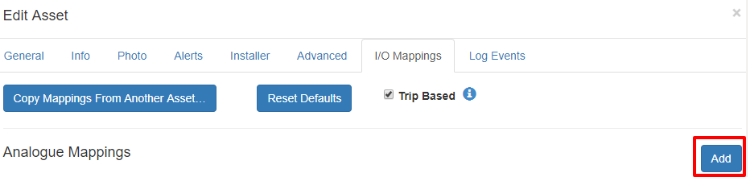
- Once you pick the Analogue number as per your OEM Server parameters you can set up the measurement configuration. There are a selection of preset Types available, or you can use a general number and conversion,
Note
if your number appears in Telemetry IO as an incorrect value, e.g. 250.0%, try changing the Conversion factor, this will change the converted figure in Telemetry IO but not the raw data in Telemetry.

- Save, here you can also select whether the readings will appear in Trip view and Live view.
 |
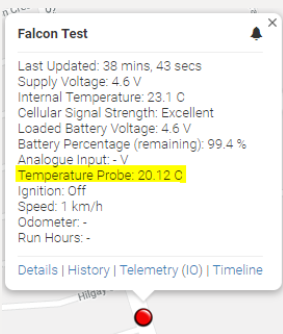 |
- Navigate to Assets >> Telemetry I/O and you can see the final converted readings. You can also graph the analogue values for custom time periods by going to Reports >> Fleet Reports >> Asset Analogue Graph.

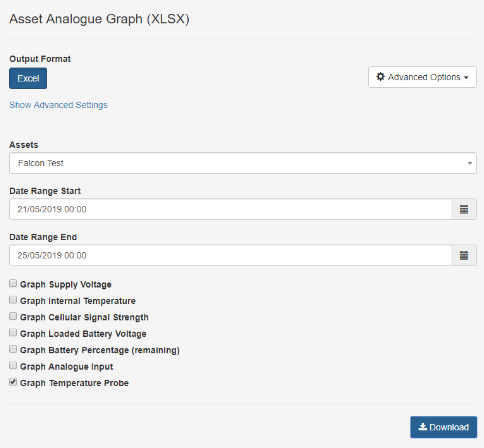
Asset Analogue Value Report - View current temp of all units
The Asset Analogue Value Report allows you to generate a snapshot of all analogue values across devices, able to be limited by projects, departments, device type, asset type or specific serials. This report can be scheduled if you require readings at specific times or intervals.
So this report can be used to tell you the current temperature reading of all devices in your organisation.

Alerting on Temp Readings
Create Alerts on Analogue Values
The temperature readings are recorded in the device's Analogue Data fields, so to set up an alert,the process is as shown in this article
