Getting Started - Alerts

Written by Matthew Clark-Massera
Updated at February 29th, 2024
Table of Contents
Introduction to Alerts
The Telematics Guru Alerts system allows you to send notifications on one or a set of criteria, or record specific occurrences into events to report on. The most common alerts that all organisations should look at setting up are detailed in this article. This is not an exhaustive list by any means, but is just to give an idea of what the function can facilitate.
Alert Examples
Low Battery Alert
All Devices , wired and battery powered, have a 'battery good flag' - which is mapped to Digital Input 25 in Telematics Guru.
You can use the Alert Wizard to create a Low Battery Alert, which will use this input and the condition that the digital input is inactive. The wizard has the 'Conditions' tab preset, so you just need to input your message on Alert conditions being active and finished and assign it to an asset.

The benefit of this alert is that it is common across all device types. You can simply set up one single alert and apply it to all assets and will fire at the right time for each device.
Movement Alert
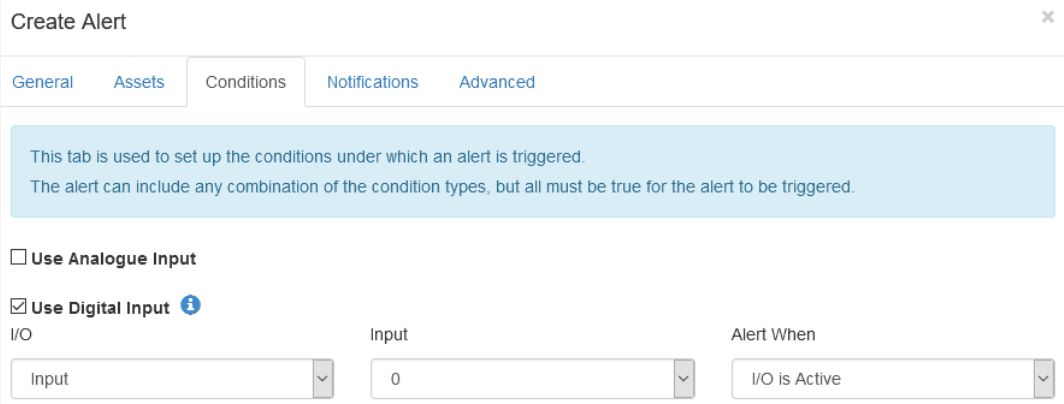
You can set up an alert on a device's ignition bit to be notified to whenever the asset starts moving i.e declares a trip. You can set this up in your initial organistion creation and assign it to all assets that are being monitored for movement, as opposed to assets that continually make trips. i.e. Theft protection. As before, If you have an asset assigned in the 'Assets' tab, the ignition bit0 will read as 'Ignition'.
Note
This is different function to the 'Movement Alert' from the Live Map, as it does not have to be re-set after each movement.
| Movement Alerts please see our "How do I Activate a Movement Alert?" article for more details |
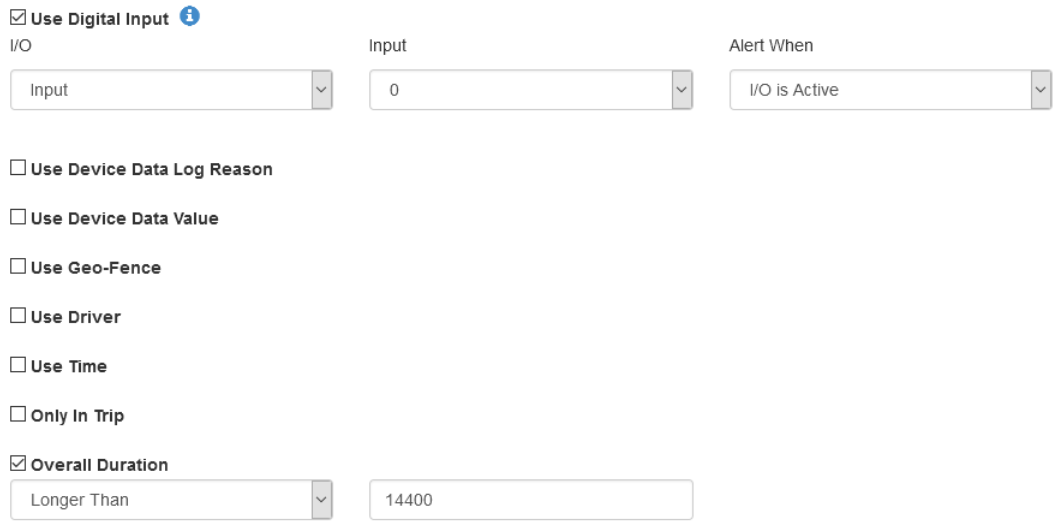
Device in trip for more than X
- Use Digital Input 0/Ignition is active and;
- Duration for X seconds. Used below is 14,400 seconds which is 4 hours.
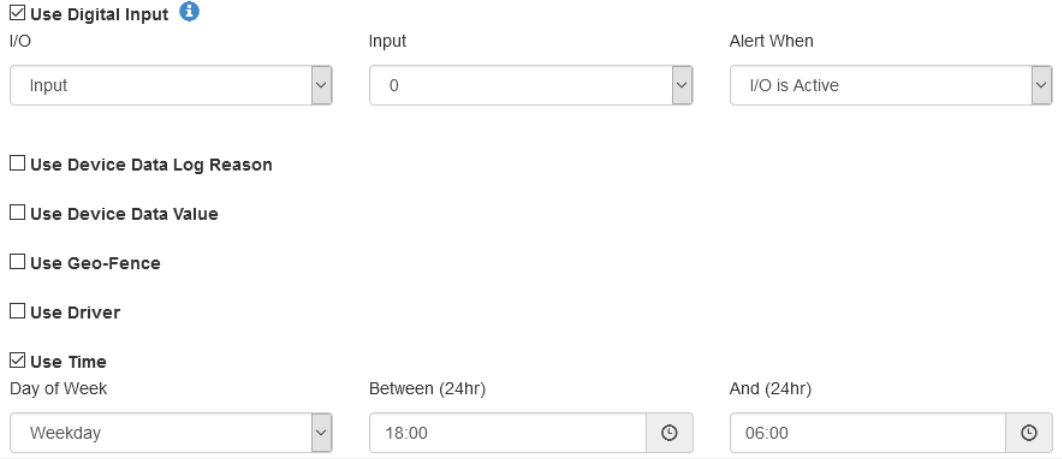
Out of Hours Movement
If you're after a restriction on operation based on the time of day or week day, for example; company cars operating outside work hours, you can set up an alert to fire when an asset begins a trip outside of a timeframe.
Report on Alerts/Events
For generating reports based off alerts and the conditions being met, please see the article Events Vs Alerts
Duplicate Existing Alert
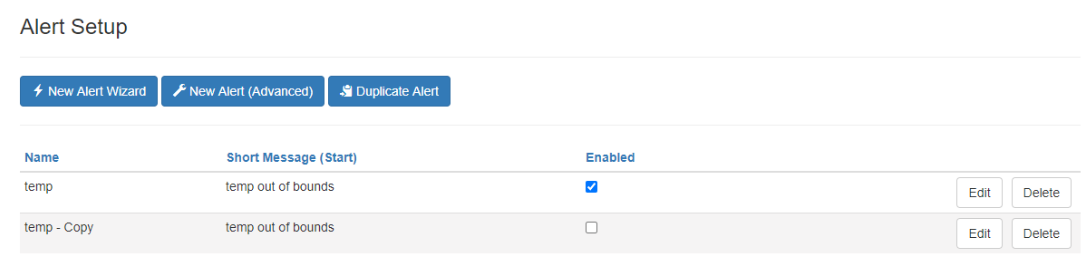
To easily duplicate an alert instead of recreating a new one for the same group of assets for example, you can se the 'Duplicate Alert' function. This will allow you to select the alert you wish to copy and take you into the edit alert screens with the conditions and assets preset.
The copied alert will be disabled by default upon creation.
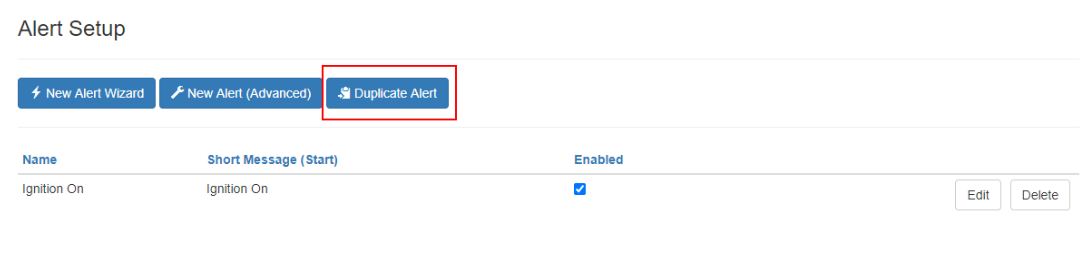
If you hit save you will be presented with this screen.
Set Alert as "Default"
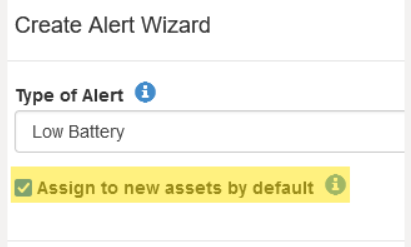
We can set up an alert such that any newly created assets will automatically be assigned to this alert. Useful for alerts such as
- Low battery alerts
- Accident/Rollover Alerts
- Duress Alerts
As we can ensure we don't forget to add the asset. Simply select this checkbox on the first screen of the Create Alert Wizard or the New Alert dialogue.
Notification Frequency
Alerts are actioned based on incoming data. As a record is received, the alert is checked and notification sent if required.
- The alert only fires once after all conditions become and remain true. For example, if the alert is configured to fire when Digital Input 1 is active, it will first fire when the input becomes active - and will not continually fire every subsequent record if it stays active. Only when the input becomes inactive, and then active again - will the alert fire a second time.
- If data upload is delayed, the alert will only be processed once it is uploaded to TG. So if a device is out of coverage for a few days, depending on settings, we could see alerts up to a few days late.
On the notifications tab, there are options in the Notification Frequency tab aimed at preventing old alerts being generated if they are not desired, or throttling many alerts being generated if there is an error and an input constantly switches etc.
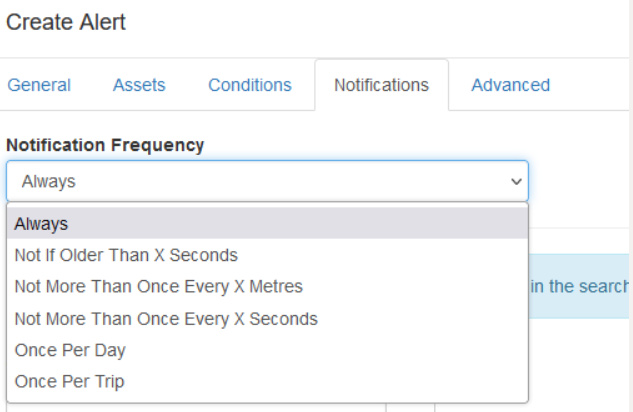
- Always (default)
- If the alert conditions are true, the alert always fired. Best for safety critical or high priority alerts
- Not If Older Than X seconds
- If the data which generated the alert is older than X - don't send the notifications. For example set to 86400 seconds to prevent data logged a day ago, but only processed today from causing an alert to be sent.
- This may be useful if you have assets which regularly go out of coverage - or if you disable/reenable assets frequently - as records stored on the device will generate alerts once they can upload data to TG if the frequency is set to Always
- Not More Than Once Every X Meters
- Useful for speeding or other alerts
- Not More Than Once Every X Seconds
- Useful if an event may occur many times (like an input toggling off/on) to reduce the number of alerts sent
- Once Per Day
- No alerts more than once per day
- Once Per Trip:
- Only alert once per trip
- If you are alerted out of trip once and then alerted again, you will not be notified on the second alert
