Push Notifications in the TG App

Written by Matthew Clark-Massera
Updated at August 7th, 2023
Table of Contents
Telematics Guru users have the ability to receive push notifications via the mobile app. This eliminates the need for SMS message notifications and the associated costs. It also enables tablets with a data connection to receive alerts.
Configuration
1. Enable Push Notification Provider on Organisation
This should be the case by default. It can be controlled by editing the organisation, Admin -> Organisations -> Edit

2. Sending Alerts to Mobile Devices
This process is the same as regular alert creation,
The user will appear in the notification list with the suffix (Mobile App) after their name. Simply select this entry so that they can receive alerts.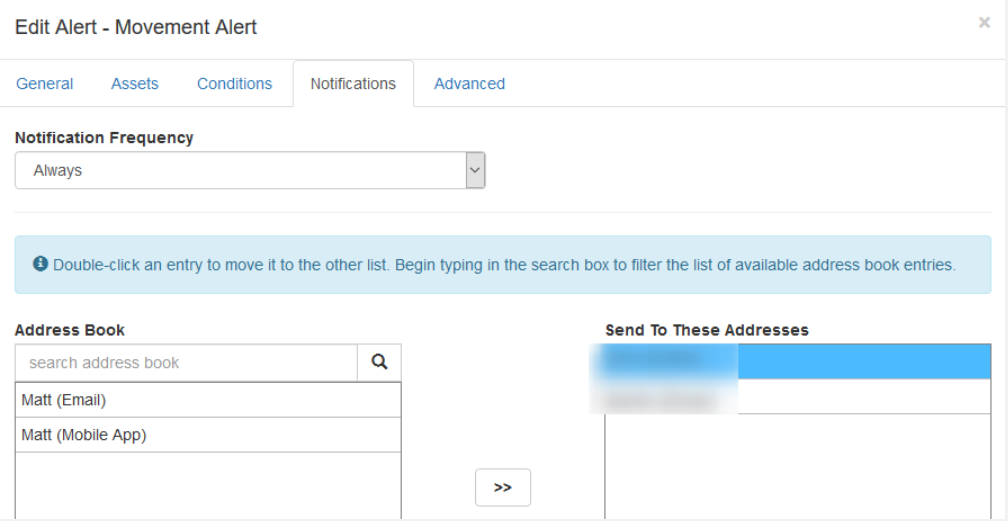
3. Managing Users and Devices
To appear in the notification list on an alert, the following must be in place.
Much of this is handled by default once a user has logged into the app and into their 'home organisation' The home organisation is the organisation their account was created in.
Most users will only ever have 1 org and not be mapped to multiple.
- The user must have logged into the app on the right server, and into the organisation for this alert.
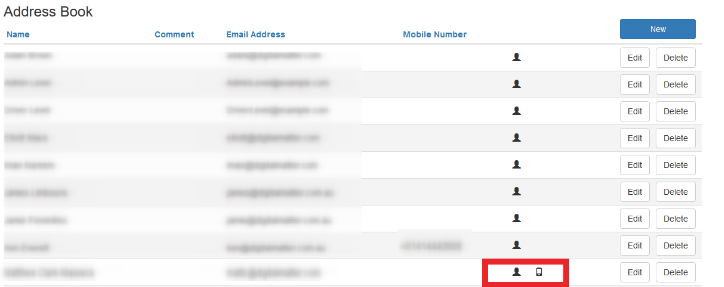
Once this is done, the mobile icon will appear next to their name in the address book (Admin -> Address Book)
A list of all devices the user has logged into the TG app on is shown against their user account, under the App tab.
Admin -> Users -> Edit
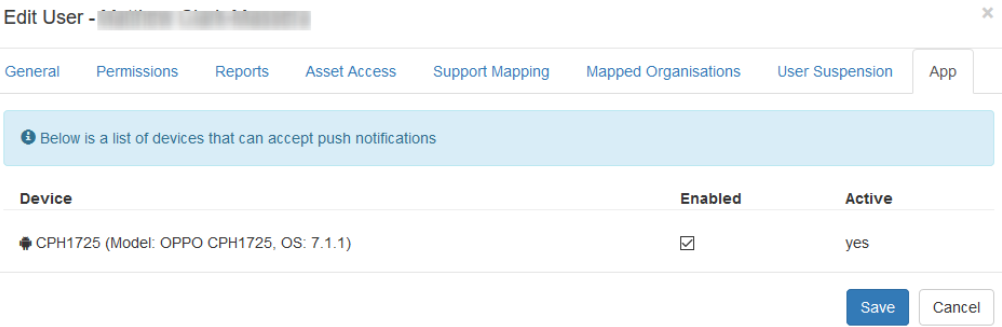
Uncheck devices in this list to stop receiving push notifications on these devices.
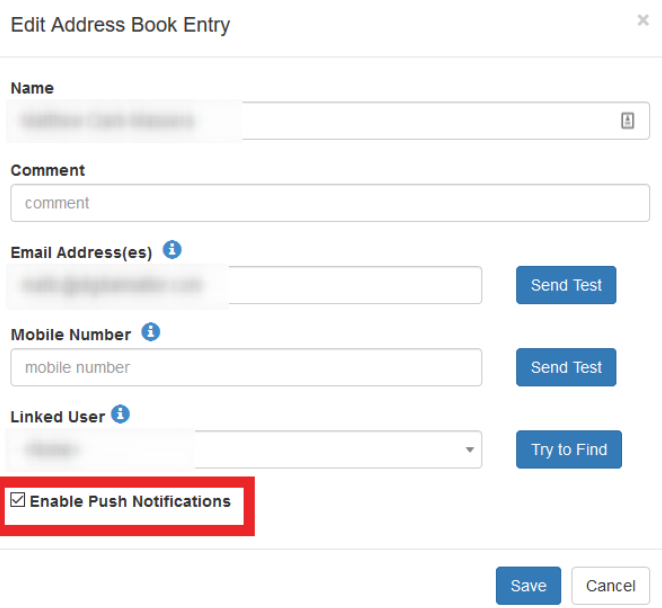
In the Address book (Admin -> Address Book) - you can disable push notifications entirely for an entry (rather than disabling all devices individually via the user entry)
Receiving Alerts from another organisation
If a user is mapped to multiple organisations, appearing in the notification list in organisations other than the user's home organisation is not as automatic, but still a quick process. Only the user in question can manage this process.
To set this up, steps are:
- Create an Address Book Entry
Admin -> Address Book
In the address book, enter the email address of the user. - Click Save
- Reopen the entry, and the Enable Push Notifications checkbox will now show, as per the image above.
- Then, to receive push notifications simply edit any alerts and add the User (Mobile App)
Troubleshooting
If you are having issues receiving notifications:
1. Ensure notifications are enabled in system settings
Android
On Android, see Control Notification on Android

Ensure in the Apps system settings notifcations aren't disabled.
iOS
See Change notification settings on iPhone
2. Ensure notifications are enabled within TG app settings
Navigate to the settings page from the in-app menu which shows:
- Whether the device is enabled to receive notifications
- A trouble-shooter to reconfigure the device to receive notifications (in the event that the device failed to receive a previous notification(s))
- Check Notifications are enabled and Run the troubleshooter.

What do notifications look like?
While the app is closed or in the background, normal system notifications will be displayed in the tray. Selecting the notification will launch/foreground the app and navigate to the asset live view.

While the app is in the foreground, a dialogue will appear with details of the alert and the option to navigate to the asset live view.
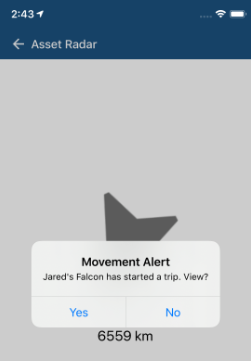
- If the user is logged into a different server or organisation, they will be presented with dialogue to change to the correct server/org to view the asset.
