Configuring Pulse Counting

Written by Cameron Everett
Updated at May 27th, 2024
Pulse counting is available on:
| Device | Firmware Version |
|---|---|
|
Dart family: Dart3-2G Dart3-4G Dart3-4G-BLE Dart3-Global-BLE |
All Versions |
| G120-2G and G120-4G | All Versions |
| G150-Global | All Versions |
|
G70 Family: G70-2G, G70-4G, G70-4G-BLE |
All Versions |
| Hawk IoT Datalogger |
All Versions See here |
Device Specific Digital Inputs
| Device | Input type (Wire Colour) | Harness Definition Link |
|---|---|---|
|
Dart family: Dart3-2G Dart3-4G Dart3-4G-BLE Dart3-Global-BLE |
Digital Input 1 - Pink Digital Input 2 - Blue Digital Input 3 - Green |
12-way harness |
| G120-2G and G120-4G |
Digital Input 1 - Pink Digital Input 2 - Blue Digital Input 3 - Green/Black Digital Input 4 - Brown Digital Input 5 - Brown/Blue Digital Input 6 - Violet/Red |
24-Wire harness |
| G150-Global |
Digital Input 1 - Blue (Harness 1) Digital Input 2 - Red (Harness 2) Digital Input 3 - Black (Harness 2) Digital Input 4 - White (Harness 2) |
2x10-core harnesses |
|
G70 Family: G70-2G, G70-4G, G70-4G-BLE |
Digital Input 1 - Blue Digital Input 2 - Orange Digital Input 3 - Purple |
10-core harness |
| Hawk IoT Datalogger |
Main Board: Digital Input 1 I/O Cards: Card Dependant |
The main board and Card I/Os |
Many of our devices can be configured to count pulses on digital inputs - for example, to monitor a meter.
Any digital inputs on our devices can be used for Pulse Counting. Note that if the Digital Input pin is shared with Driver ID it cannot be used in conjunction with Wiegand or TTL readers.
Pulse counting on the Hawk Datalogger is configured slightly differently when compared to the G70, G120, G150 and Dart3. See this page for information on configuring pulse counting on the Hawk.
To configure Pulse Counting (G70, G120, G150 and Dart3)
- You will need to add the relevant Digital Input under System Parameters on OEM server.
- Set "Function" to "Pulse Counter".
- Set the "Config1" field to an Analog input where the pulse counts will be written to.
Specifics
- You have two debounce times to choose from - depending on what Analog Input you pick.
- Less than and equal to 10 = Debounce Time of 10 ms.
- More than 10 =Debounce Time of 20 ms.
- Some Analog inputs of less than 10 are reserved and used for other functions.
- E.g. Analog input 4 = Cellular Signal Strength for Dart3, G70, G120 and G150.
- Pulse Counts happen only on Rising Edges.
- The total count resets across a power-on reset
Example
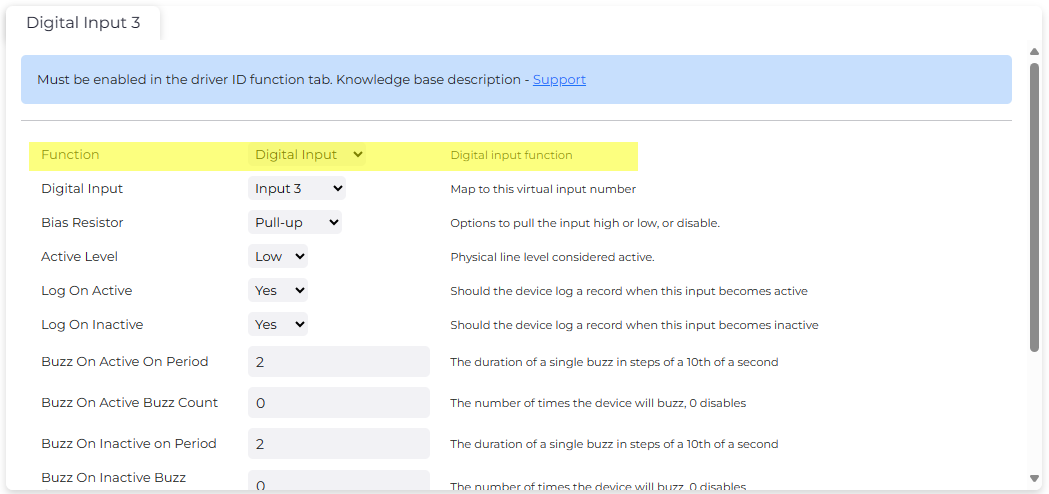
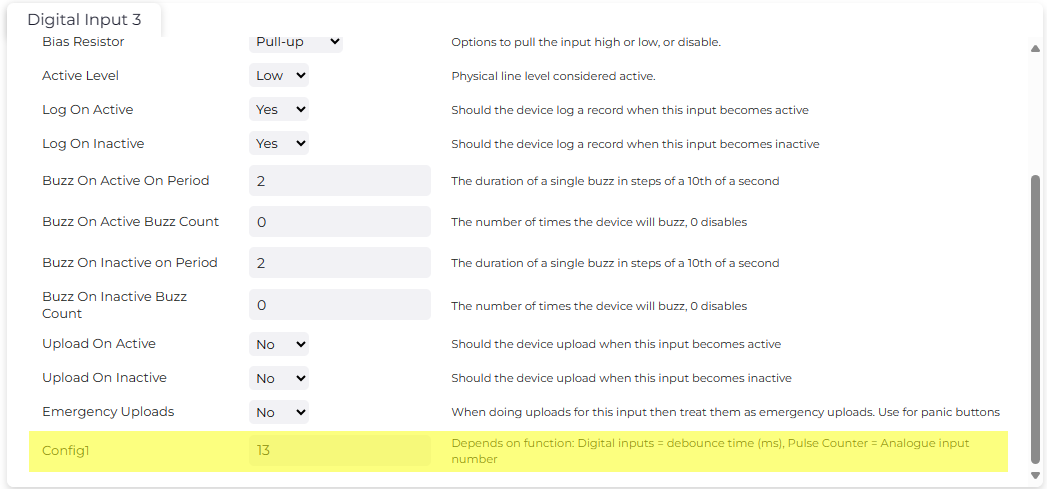
In the example below, we have configured Digital Input 3 for Pulse counting.
Counts are sent to Analog 13. Analog 13 has a Debounce Time of 20 ms.