Hawk - Upload when outside desired sensor range

Written by Matthew Clark-Massera
Updated at January 27th, 2023
Table of Contents
For some applications, like temperature monitoring, we may only 'care' when the temperature is outside an allowable range.
We can configure the Hawk to maximise battery life by setting it to sample the temperature frequently, upload infrequently, but force an upload if any of the temp samples is outside our allowable range. This means we still get all data throughout the day recorded, but uploads only occur when there is an exception we need to know about - saving battery life.
For example:
- Log temp every 15 min
- Upload every 4hrs
- Temp must stay within 2°C to 10°C
- If any individual reading is outside this range, upload immediately, and continue uploading each time it is outside the range
Configuration
Configure Task
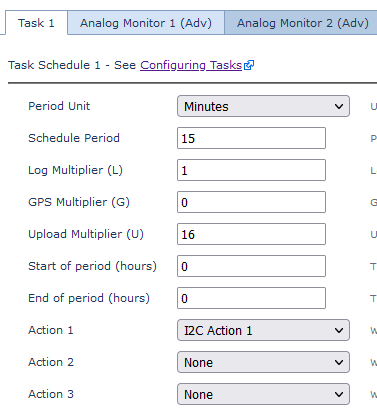
Configure a task to take an I²C reading (for temp sensor) and log it every 15 minutes, upload every 16 readings = 4hrs
If we were using another type of sensor we'd select that action type.
Configure I²C Action
We would configure the relevant action if using a different sensor, but for the DM Temp/Hum Sensor, we set it to write the Temperature to Analog 10, and Humidity to Analog 11

Configure High Threshold
The Analog Monitor can be used for this purpose.

- Analog Input = Analog 10
- Analog 10 (Temp) is what we are checking against the threshold
- Threshold Type = High Threshold
- We are in the 'alarmed'/exception state when above the Threshold Value
- Threshold Value = 1000
- The sensor reports in °C * 100 - so 10 deg = 1000
- Hysteresis of 50 means the temp needs to drop back below 9.5 for the alarm state to end
- Upload on every alarm event (this will include start + and every reading where the temp is >10°C)
Configure Low Threshold

As before, but we are setting a low threshold to be alarmed when <2°C. Alarm state ends when we return above 2.5°
