Critical Parameters

Written by Ava Bilimoria
Updated at May 31st, 2024
Table of Contents
Our battery-powered devices are highly configurable, with many parameter options available, so that your device can be tailored to suit your specific use case or enable features.
While the defaults are a great starting point, users should pay attention to and configure the below parameters to optimize the device’s performance and battery life.
Note
It is always recommended to test new firmware and settings on a couple of devices before deploying across your whole fleet.
Update Firmware
Over time, firmware updates are released that optimise device performance and add features. These updates are not applied automatically and must be set by the user. When initially provisioning your device, it is important to update the device firmware to the latest version. Most updates are 200–400 kB.
For details on how to set firmware updates on your device, see the Firmware Update section at the end of our Device Manager - Getting Started Guide.
Set the Network Profile
LTE-M/NB-IoT Devices
Applies to: Barra GPS, Barra Edge, Oyster3-4G, Oyster3-Bluetooth, Oyster Edge, Remora3-4G, Yabby3-4G, Yabby Edge
For optimal battery life, it is important to set the network profile in Admin Parameters.
The network profile sets the LTE-M and NB-IoT bandmasks on the device. Most networks only use at most a few bands. Setting the bandmasks means when trying to connect to the network, the device will only scan these bands, rather than all possible bands - saving a lot of energy!
See Setting the Network Profile - LTE-M/NB-IoT devices for instructions on how to set the profile, and create a template to apply to all devices.
Cat1 bis Devices
Applies to: Oyster3 Global, Remora3 Global
For optimal battery life, it is important to set the network profile in Admin Parameters, specifically when using Cat 1bis.
The network profile sets the Cat 1bis bandmask on the device. Most networks only use at most a few bands. Setting the bandmask means when trying to connect to the network via Cat 1bis, the device will only scan these bands, rather than all possible bands - saving a lot of energy!
NOTE: Bandmasking is not available for 2G connectivity.
See Network Settings - Global Devices for instructions on how to set the profile, and create a template to apply to all devices.
If you are unsure of which profile to set, contact support.
Upload Timeouts: Registration Strategy
The device can detect when it is out of coverage, and quit the upload early. This can save a massive amount of energy if the device is regularly out of coverage, otherwise, the modem will stay on draining power until the upload times out.
There are different strategies to manage this behaviour, "Auto" is defaulted, and the device will automatically select the best strategy for the SIM card you have used. This parameter can be left as default, but is worth noting if you experience issues it may require adjustment. More details about this feature here: Upload Timeouts - Network Registration Strategy
Advanced GPS Settings: GPS Detector
The device will quit a GPS fix attempt early if it detects that signal is very poor. If we can't see a couple of satellites early on, we're probably undercover where we won't get a fix even if we spend 60–120 seconds trying, so we should stop the attempt. Below are the default parameters for Advanced GPS Settings.
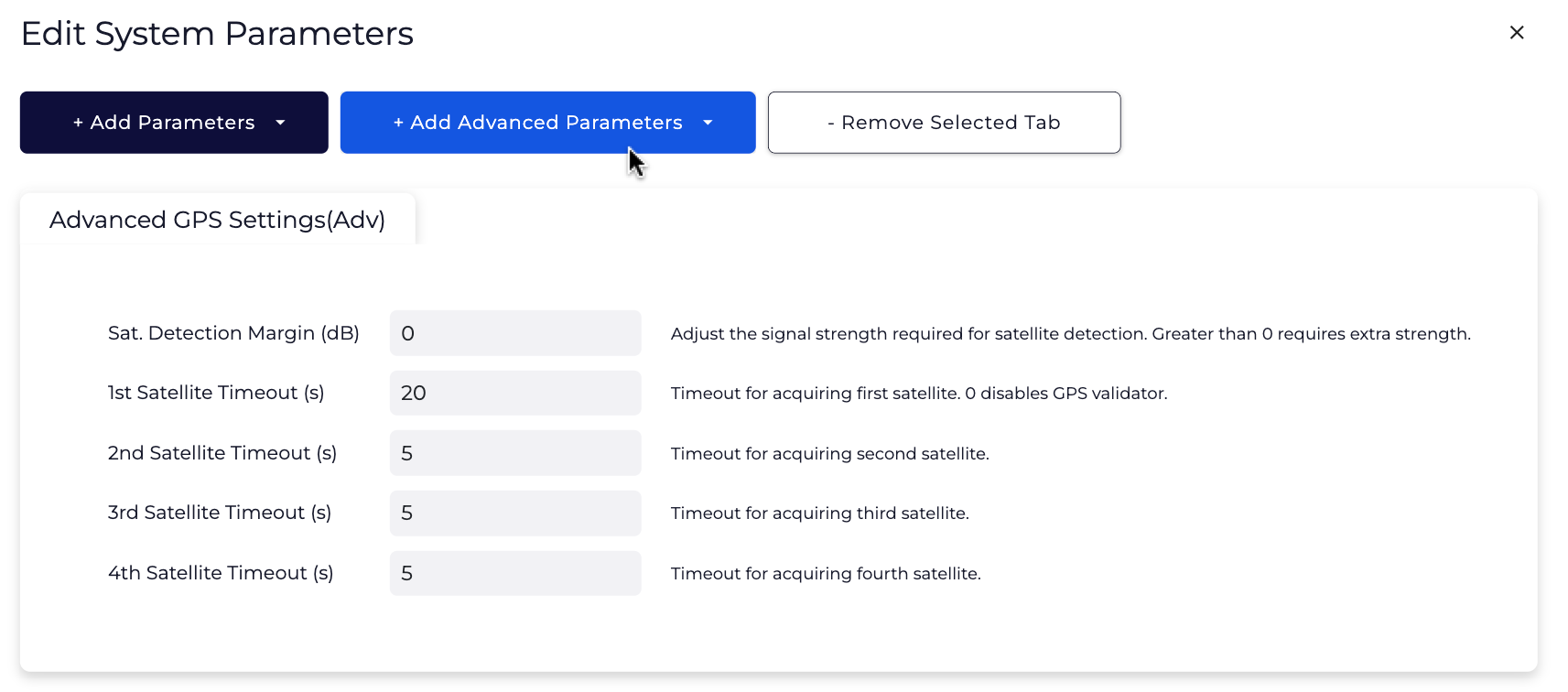
At least 4 satellites are required for a GPS fix, so with this knowledge, behaviour of the default parameters is as follows:
- Device wakes up and attempts to get a GPS Fix
- If after 20 seconds, we can't even see 1 satellite at all (even with a weak signal), give up
- If after another 5 sec (25 sec total), we can't see 2, give up
- If after another 5 sec (30 sec total), we can't see 3, give up
- If after another 5 sec (35 sec total), we can't see 4, give up
This will save battery life in most cases, but it could cause issues acquiring fixes in some scenarios, in which case the Advanced GPS Settings should be adjusted. See GPS Settings for more details.
