Scheduled Uploads

Written by Cameron Everett
Updated at October 29th, 2025
Table of Contents
Applicable to:
|
Barra Edge Barra Recovery |
All Firmware versions |
| Yabby3 Yabby Edge |
All Firmware versions |
| Oyster3 2G Oyster3 4G Oyster3 Bluetooth Oyster3 Global Oyster Edge |
All Firmware versions |
|
Remora3 4G Remora3 Global |
All Firmware versions |
|
Manta Fusion Manta Fusion Global Manta GPS CATMNB |
All Firmware versions |
Scheduled uploads allow heartbeats to be sent at up to 6 specific times during the day.
Without scheduled uploads enabled, heartbeats are just sent on a periodic basis - with the heartbeat interval being the time after the last upload. Trips and other uploads occurring will shift the specific time of day that heartbeats happen. The heartbeat interval is the maximum time between upload attempts.
This can be more useful than the standard heartbeat, particularly if it is important to know where assets are at specific times of the day (i.e. shift changes, events happening etc.).
Enabling Scheduled Uploads
Only 2 parameter tabs are required, Time Zone and After Hours, and Scheduled Uploads
Under Time Zone and After Hours - simply set your Time zone, and Daylight Savings Periods if they apply.
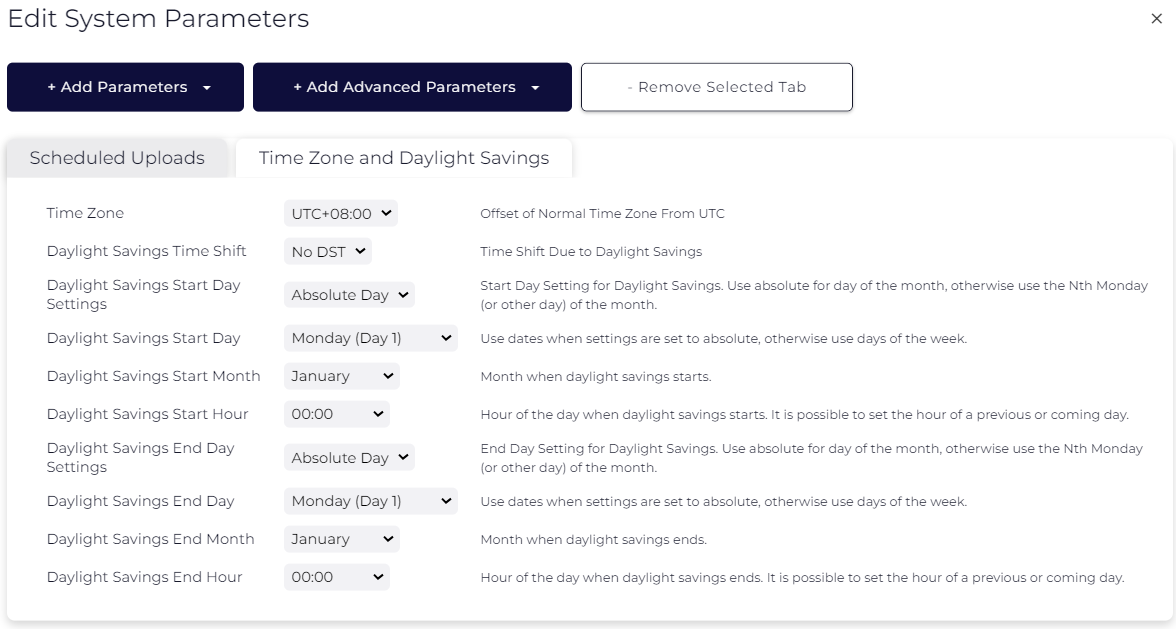
Then in the Scheduled Uploads tab - simply select up to 6 scheduled update times.
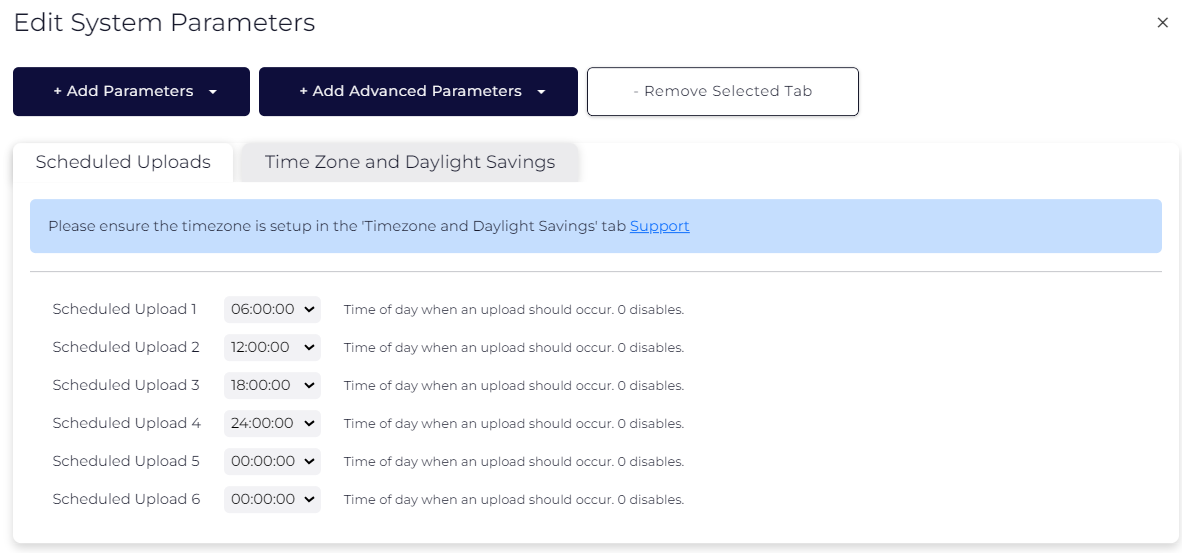
Note - When enabled, the scheduled uploads replace the periodic heartbeat. All other uploads will continue as normal. In other words, trip, Bluetooth, tip, high-g and other uploads will not be delayed/affected.
So, if we want uploads ONLY on the schedule, i.e. 6am, 12pm, 6pm, 12am as above - we need to set the device to Period Updates only.
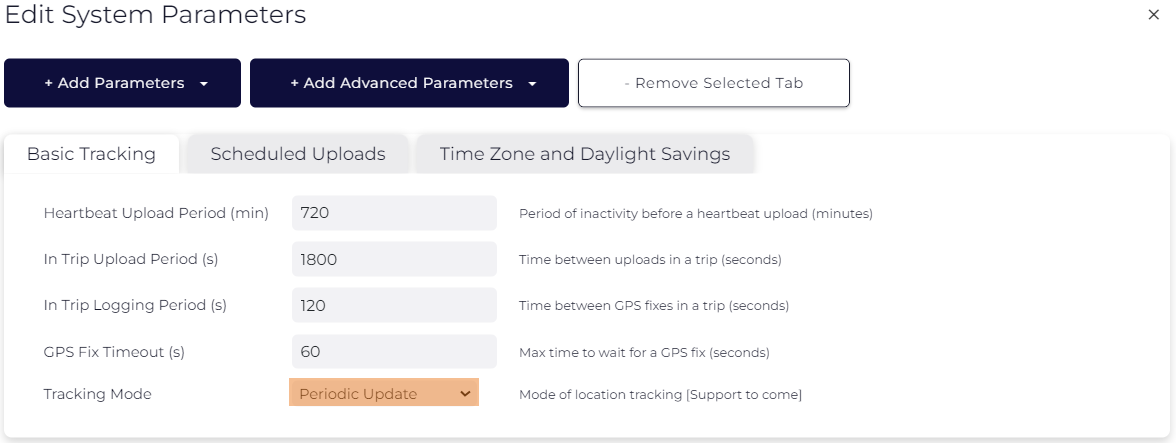
Notes
- The allowable times are in 15-minute intervals throughout the day.
- The scheduled uploads will be the same every day (i.e. you can’t choose different times for different days)
- The scheduled uploads will have an element of randomness - so there isn't a situation where there are many devices all trying to upload data at the same time, causing strain on the network. They will all update within a 10-minute window - 5 minutes on either side of the scheduled period.
Setting the Time Zone in Bulk
There are a few ways that you can manage your devices and their respective time zones if your devices are located in different regions:
- Update your devices in bulk using multiple parameter templates
- You can have a template per region (per time zone)
- Update your devices in bulk using a single parameter template
- Adjust the Time Zone via the OEM WebAPI
- This would allow your platform to set the time zone based on the last received location of the device if setup correctly
- Adjust the Time Zone via the OEM WebAPI
