Telematics Guru - ALR Guide

Written by Matthew Clark-Massera
Updated at August 28th, 2025
Table of Contents
Telematics Guru ALR (Asset Location and Recovery) is a simplified version of Telematics Guru, providing tracking essentials at an excellent price point. It is intuitive, easy to use and has been carefully designed to deliver the information you need when you need it.
Note
If this is your first time using Telematics Guru, please make sure you read the articles given in TG Getting Started
ALR Features:
- Asset Location: Locate your assets with a dot on the map.
- Recovery Mode: Enable Recovery mode on your devices.
- Reports: the reports you need to ensure your devices are working as they should
- Alerts: alerts that allow you to proactively guard your fleet.
- Mobile App: ALR on the go.
TG Classic/Pro/PPM vs TG ALR - Key differences
- Live view: only 1 asset is shown on the map at a time.
- Asset history: No asset history is saved. The Mobile App provides up to 30 days of history.
- Alerts: Not all alerts are available.
- Geofencing: Not supported on ALR
- Reports: Not all reports are available.
User Guide:
Creating an Organisation
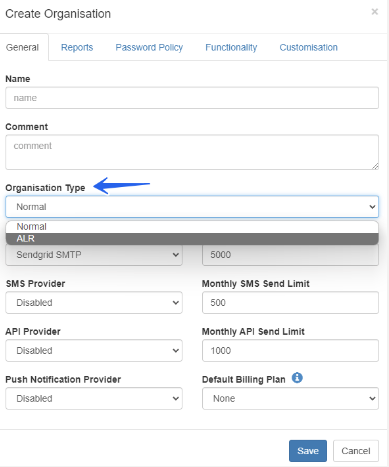
When creating an organisation, you'll need to select the Organisation type "ALR".
Create a New Organisation. More info here.
Creating Assets
Creating Assets in Telematics Guru Asset Duplication is not supported on ALR
Live View
Once you have created the assets, you should be able to see on the Live View - you will need to wait until the devices to report their location (either when the heartbeat or when they move).
The map will zoom in to the asset by clicking on the Asset name on the list on the right

You can also view assets on the live view map by clicking the location in the Assets Tab.

Address Book
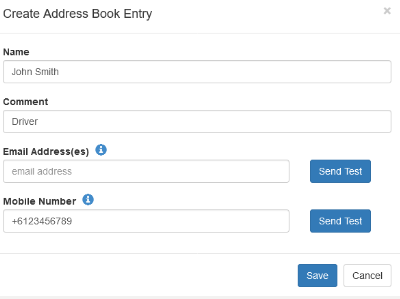
The Address Book is where contacts are set up in TG. Contacts are notified by alerts. You need an Address Book entry to send an alert, so set up your Address Book before creating an alert.
Admin Tab -> Address Book
Recovery Mode
Recovery mode can be used to help recover a stolen asset. When set, a device reports more frequently, and begins 'live tracking' when on the move.
This can be enabled within the Asset Tab view.


Immobilsation
Immobilisation can safely disable vehicles and equipment remotely. More info here - Immobilisation Install - Asset can be immobilised from server
Make sure to enable this feature within the Telematics Guru website.

To immobilise an asset, the Telematics Guru website or the mobile app can be used.


Movement Alerts
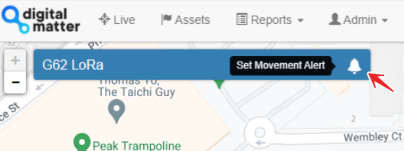
Movement Alert is a one-touch feature to allow the user to set an "anchor" to the asset so that it will notify the user when it next moves. It is ideal for trailers, recreational equipment, horse floats, boats, motorbikes, dollies, equipment, and even vehicles where the user is concerned about theft of an asset when leaving it temporarily at a location.
Note: Once the asset moves and a movement alert is fired, the user will need to set/enable the alert again to be notified of the next movement. These alerts are not ‘permanent’.

Battery Low and Devices Not Connected Alerts
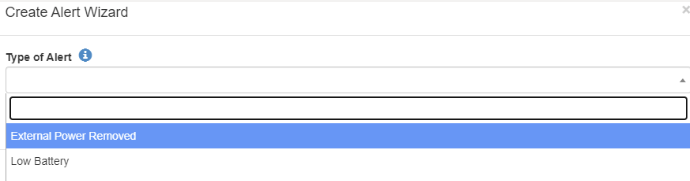
Apart from Movement Alerts, ALR supports External Power Removed and Low Battery alerts, allowing partners to manage their clients' devices.
Admin Tab -> Alerts -> New Alert Wizard.
More info, please see Set up an Alert with the Wizard, External Power Removed Alerts and Battery Level Monitoring
Reports
ALR offers three reports that can be customised and scheduled (sent via email).
- Asset List - List of all assets in the organisation with the last connected date and the last known location.

- Devices Not Connected - List of assets that have not connected for a set time frame eg. 24/48 hours.
- Remaining Battery Estimate Report - Applicable to battery-powered devices with Battery Meters only (Remora3 and also some older devices eg. Oyster2).
More info -
Schedule the Devices Not Connecting Report
Customize Reports
